
You can set up permissions for different users or user groups to your process by assigning to them different roles from Reader, Executor, Editor and Owner. Each role sets a unique level of access the user or user group will have to the process to be able to view or make changes.
Reader: Any user you give this role to can view process and steps in that process, but not run, edit, delete or grant permissions to the process.
Executor: Any user you give this role to can view and run the process, as well as create a process run, but not edit, delete or grant permissions to the process.
Editor: Any user you give this role to can view, edit and run the process, but not delete or grant permissions to other users in the system.
Owner: Any user you give this role to can view, edit, run the process, delete and grant permissions to other users in the system. The creator of the process is automatically the owner.
Process runs inherit permissions of a process they belong to.
Learn more about the SolveXia roles and permissions of a process.
How to give access to the process
1. Open the process.
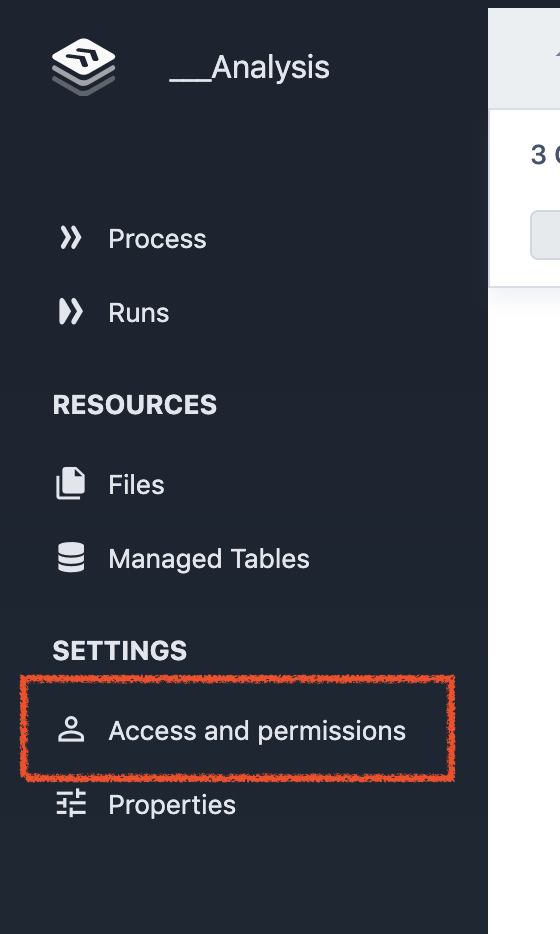
2. Choose the menu item on the left Access and permissions.
3. Choose the role you want to grant to the user or user group.
4. Type the user or user group name in the box next to the role to see all available users and groups in the system.
5. Click on the user you're looking for.
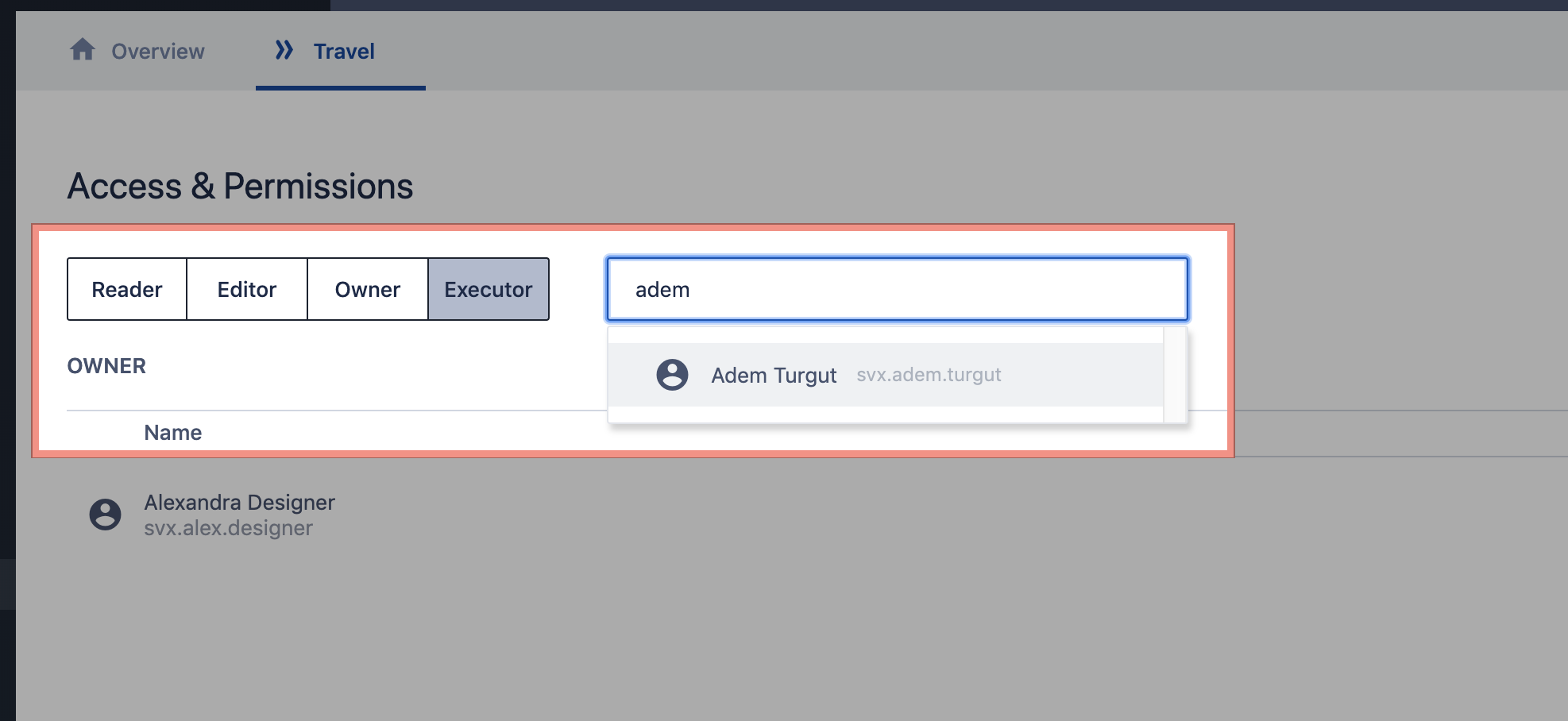
The user will appear in the list below.
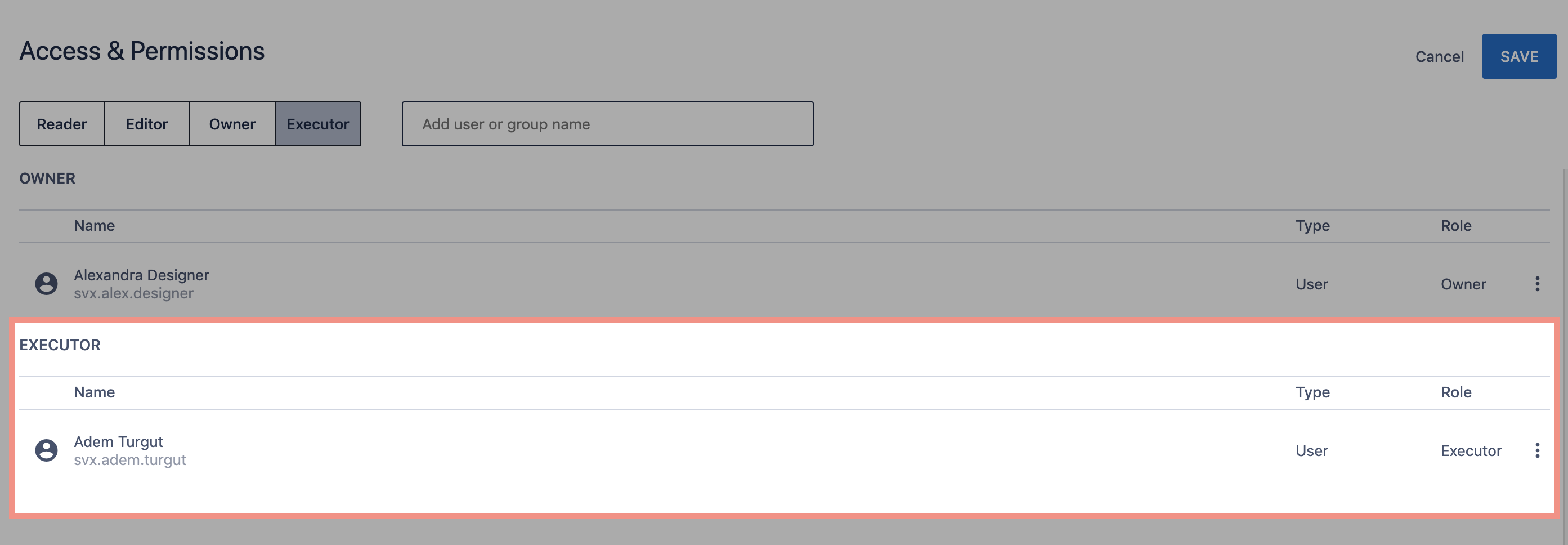
6. Click Save.
How to change or remove access to the process
1. Navigate to the process you want to manage access to and choose the menu item on the left Access and permissions.
2. Click the menu icon next to the user or user group you want to change access for.
3. Change or remove the role by selecting one of the menu items.
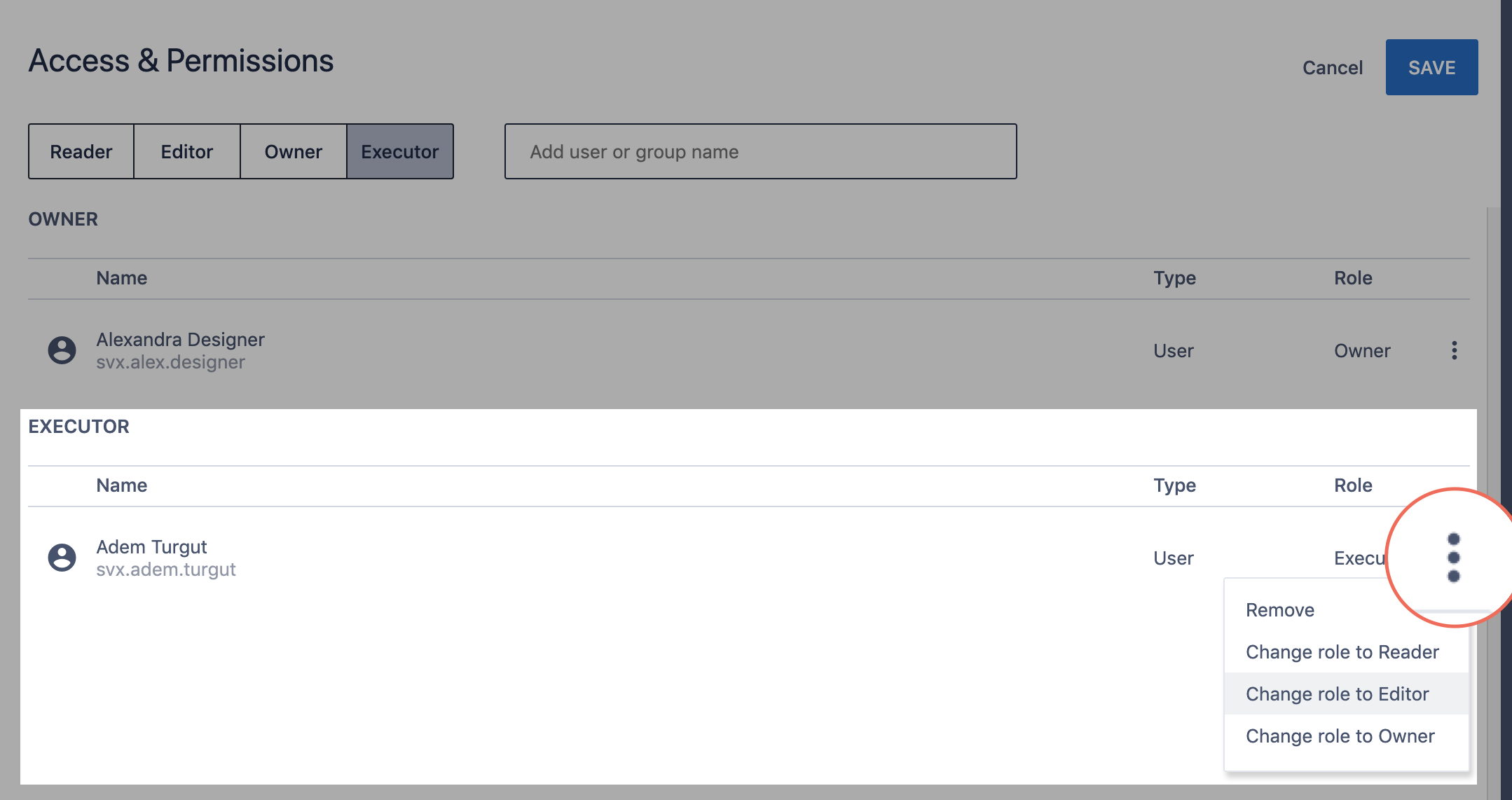
4. Click Save.
Comments
0 comments
Article is closed for comments.