
The error message This step has failed because the range was invalid. Please ensure the "To cell" is to the right of the "From cell" and is not above it appears when the cell range of an Excel workbook of an Excel-related instruction, has been improperly configured.
This may happen for a variety of reasons unintentionally.
Explanation
All cell ranges indicated for Excel-related instructions must follow the rule:
The "From Cell" address must be located above and to the left of the "To Cell" address.
Examples below further illustrate this rule.
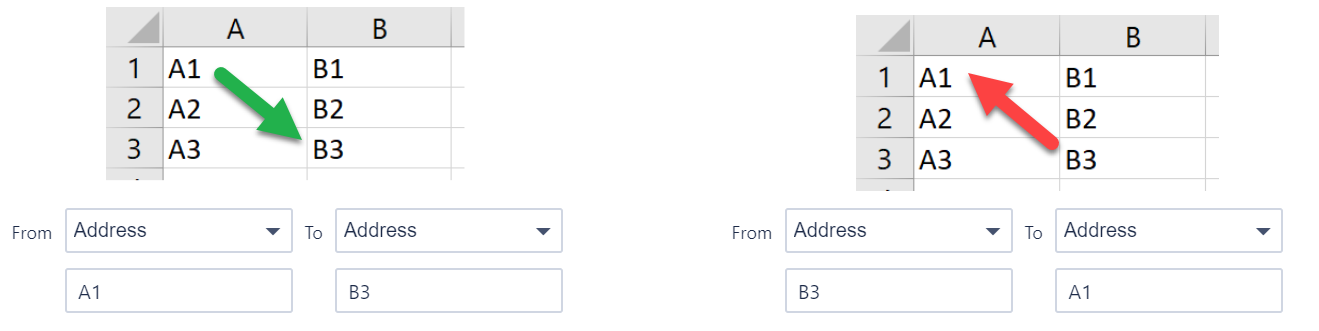
In the example on the left, the configuration is correct, as the cell range is configured from the "From Cell" (A1) down and to the right to the "To Cell" (B3).
The example on the right shows an incorrectly configured cell range, as it starts from cell B3 up and to the left to cell A1.
Common trap
Given below is a common example where the above error message may be displayed unexpectedly.
Suppose we have an Excel workbook with the following structure for an approvals report. The screenshot below provides an example of the expected data from these reports. This data changes from day-to-day.
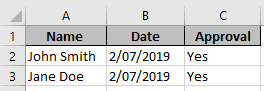
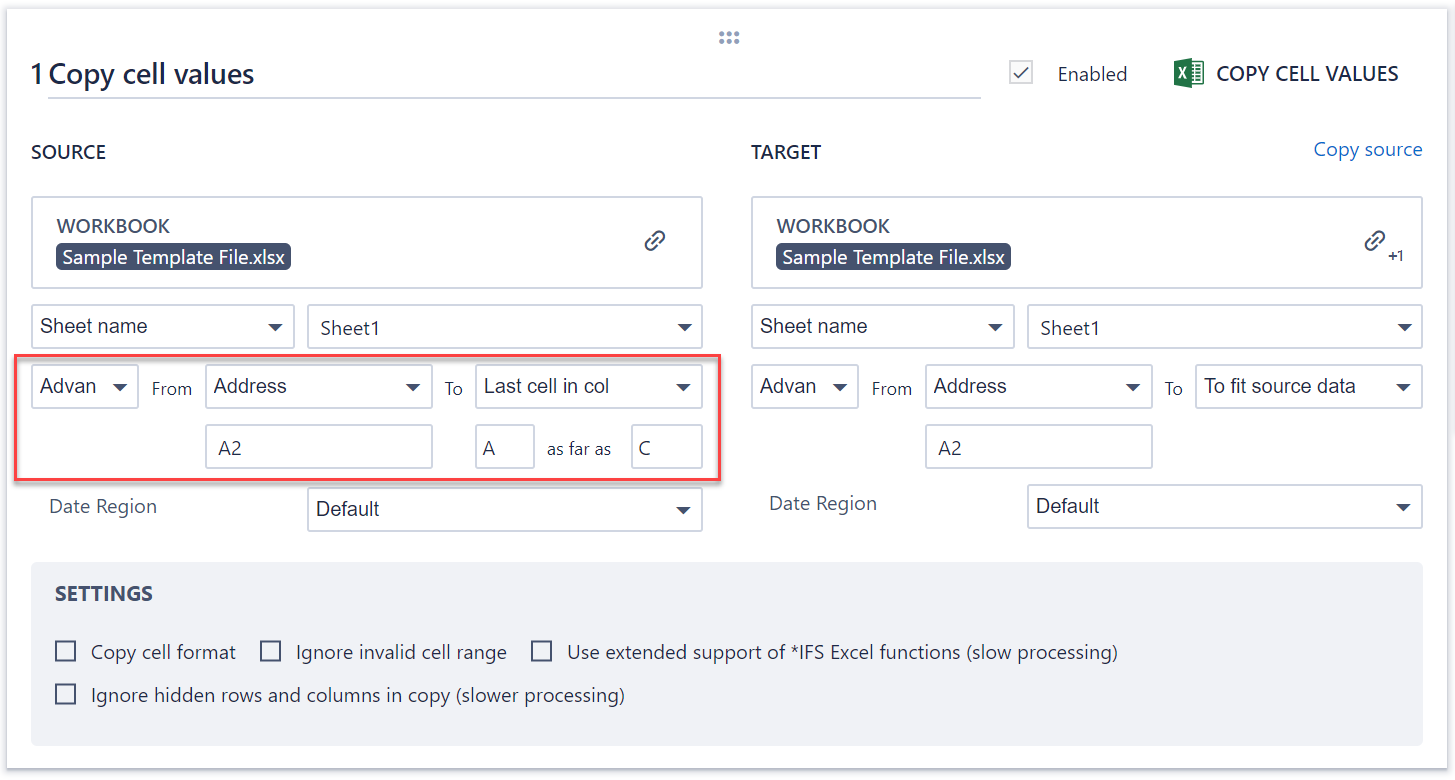
We then wish to copy this tabulated data to another Excel workbook. The process is configured then to look like:
However, suppose that during today's process run, no data is supplied (assuming that is expected and normal for no data to be supplied on some days).
The step will produce the following error (the subject of this article):
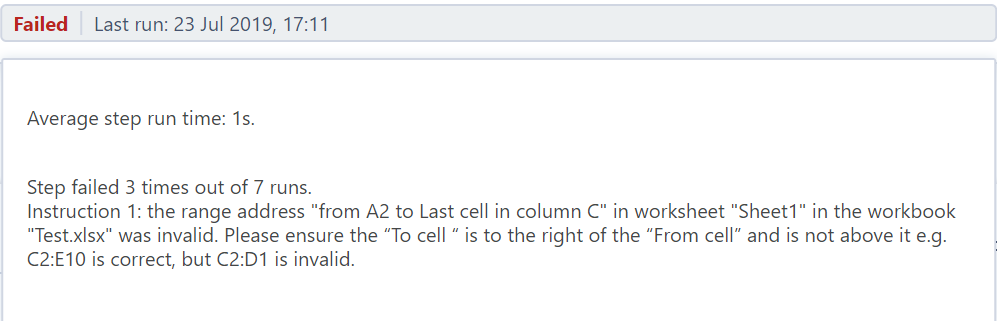
This error may appear unexpectedly to the designer as the step has been running successfully in previous process runs.
The reason for this is due to the fact that today's tabulated data is blank (expected on some days).
And so, the above configuration for "From Cell" is A2, while "To Cell" is effectively C1, since the "Last Cell in Col A" is actually in row 1.
Solution
There are 2 common solutions to this problem, when data is expected to be blank on certain process runs.
The first involves the feature given below:
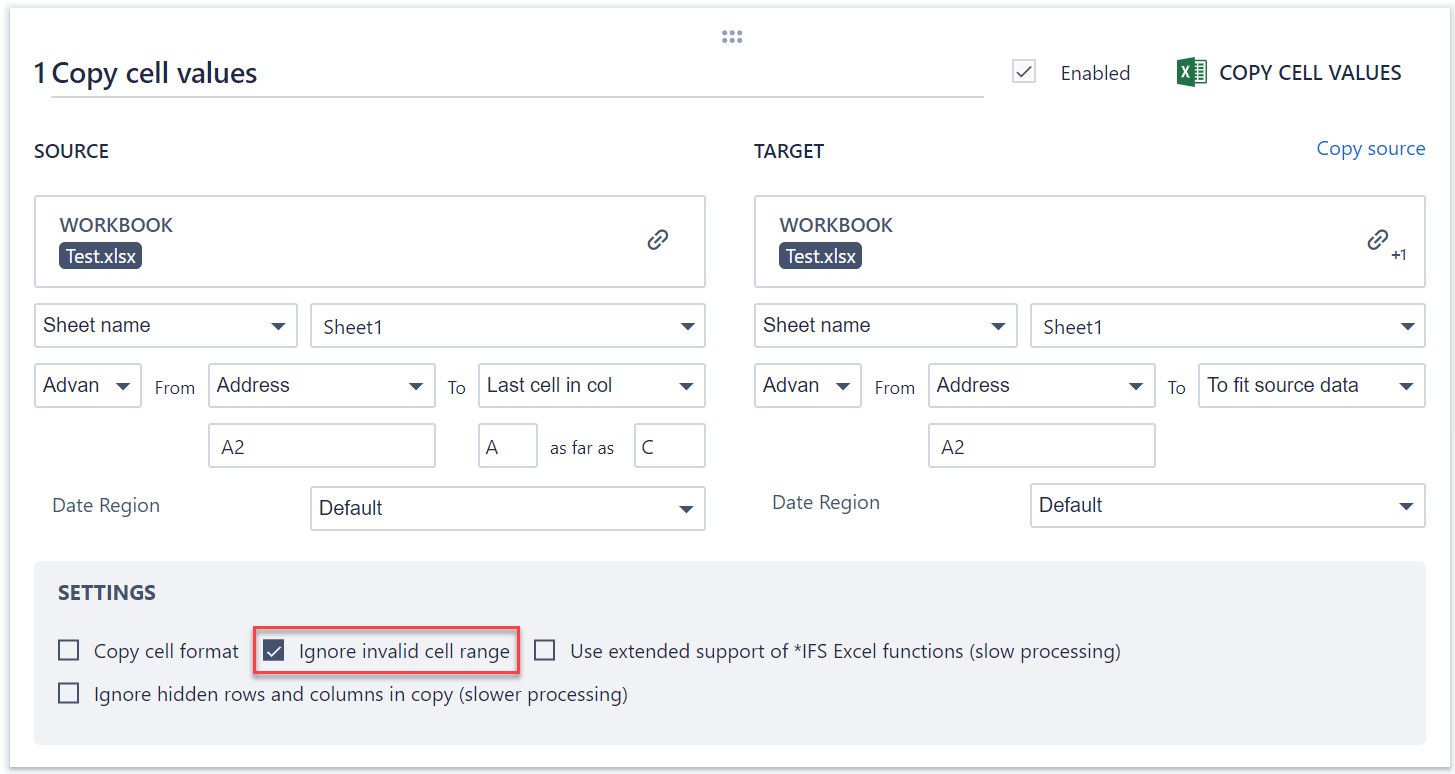
This option will cause step to "pass with warnings":
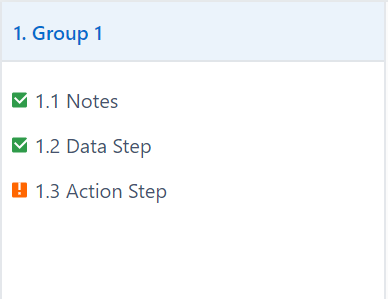
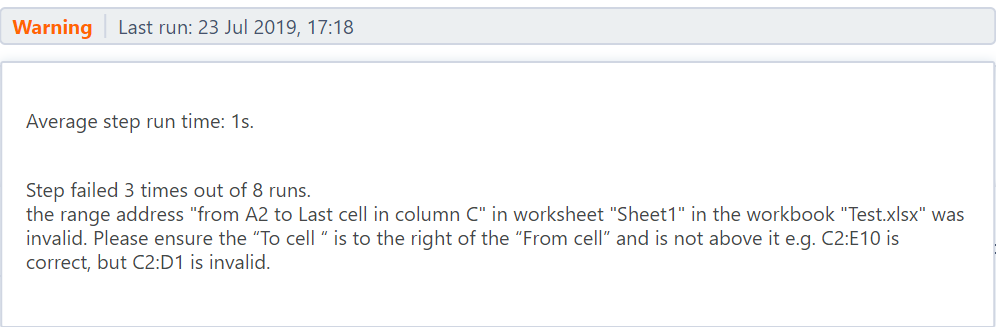
Effectively, this means the step will continue normally, however a warning is raised in case the Designer wishes to review these warnings later.
The instruction in particular will produce the following warning:
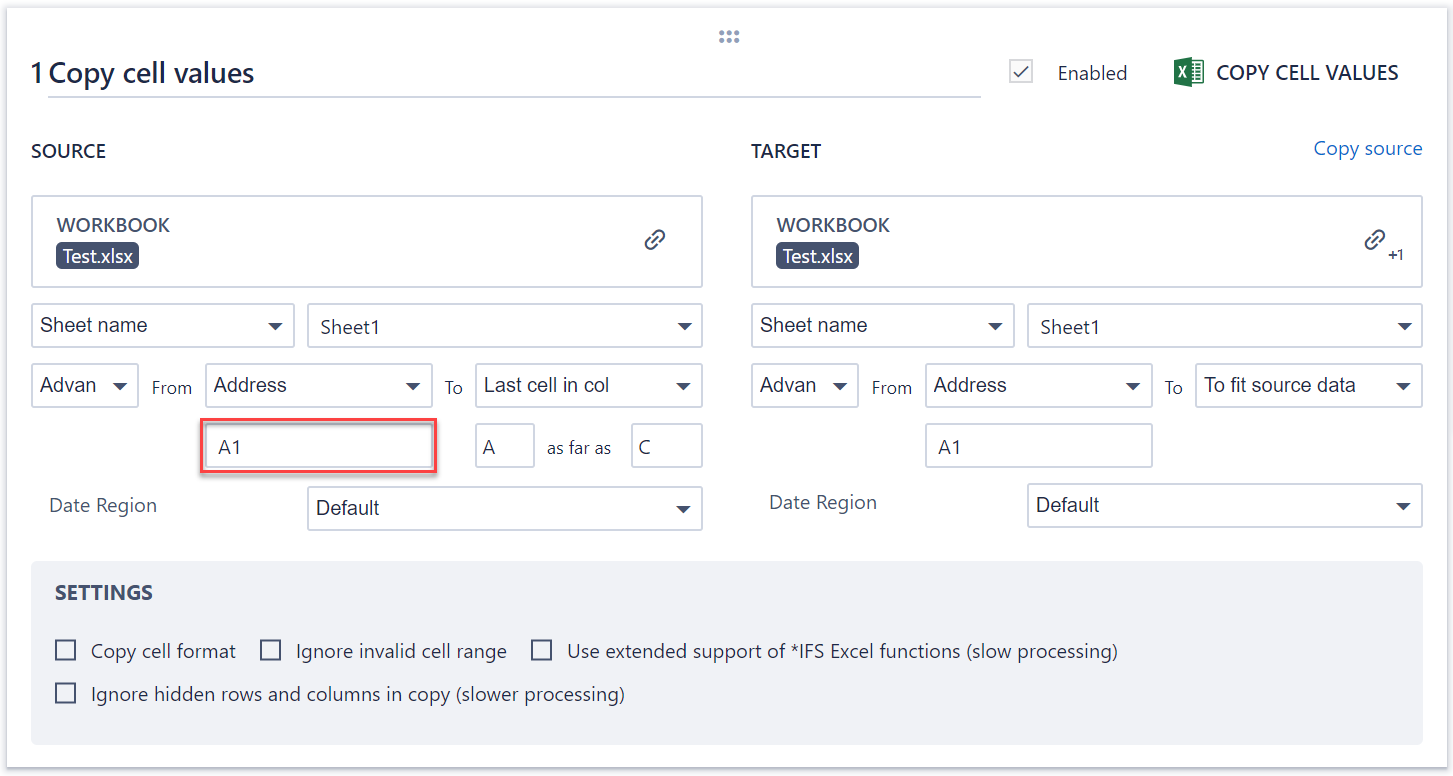
The second solution involves including the table column names inside the cell range, effectively avoiding this situation of having an incorrectly configured cell range (from bottom right to top left of a cell range):
Comments
0 comments
Please sign in to leave a comment.