
If you sign in to SolveXia using a username and password (NOT a Single Sign-On provider), you can turn on multi-factor authentication (MFA). MFA makes it difficult for somebody else to sign in as you. After you enter your password, you'll be asked to enter a 6-digit passcode. You can get the passcode from a text message (SMS) or a 2-factor authentication app installed on your mobile device.
To enable multi-factor authentication for all users in your organisation:
- Open SolveXia Admin.
- Navigate to the Security page from the menu on the left.
- Click 'Activate two-factor authentication for your organisation.
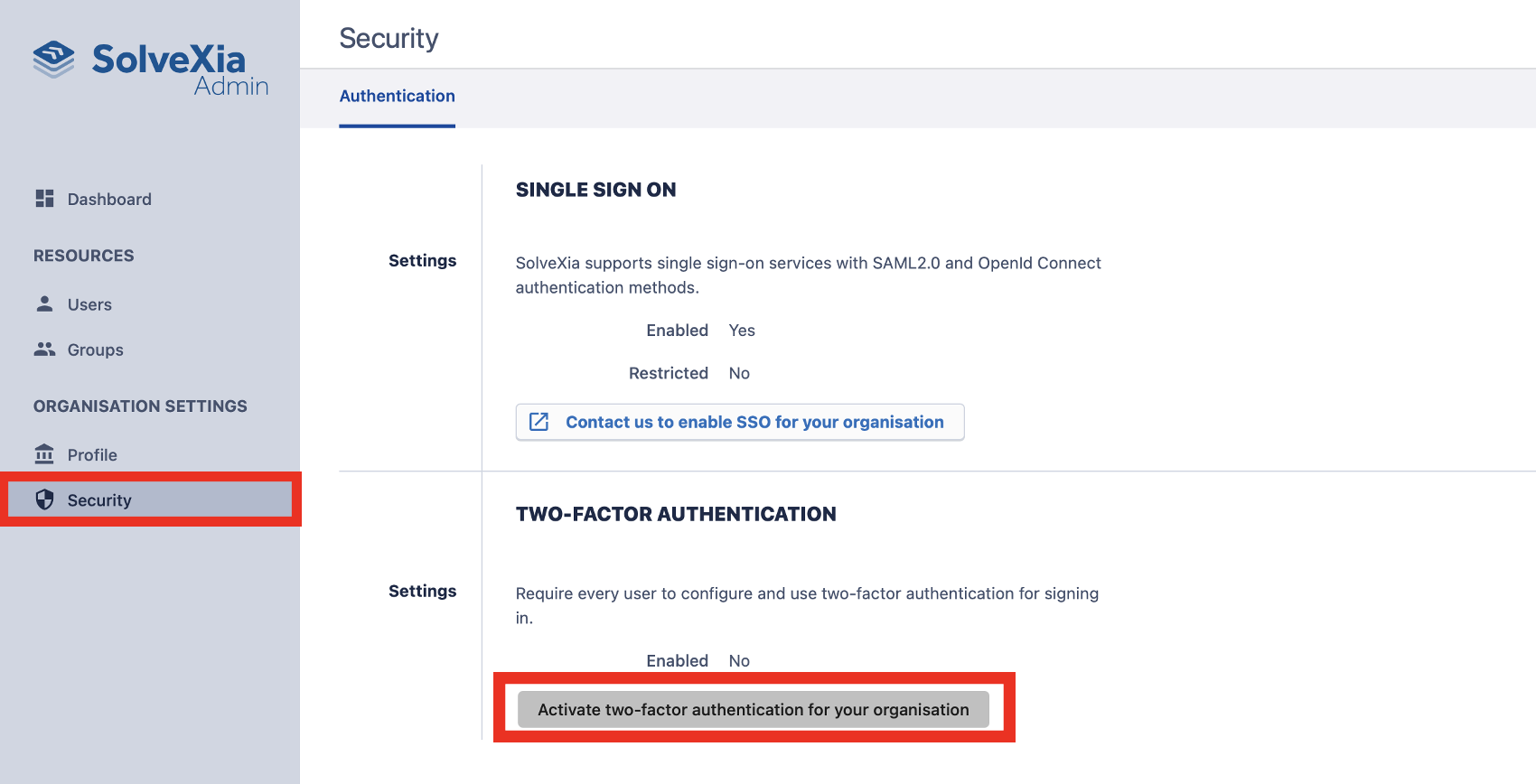
Note: Multi-factor authentication cannot be enabled if you use Single Sign-On (SSO) to log into SolveXia.
- A pop-up message will ask you to confirm two-factor authentication and explain that all users must set up two-factor authentication once enabled. Click 'Confirm'
- Now two-factor authentication is enabled, your screen should look like this:
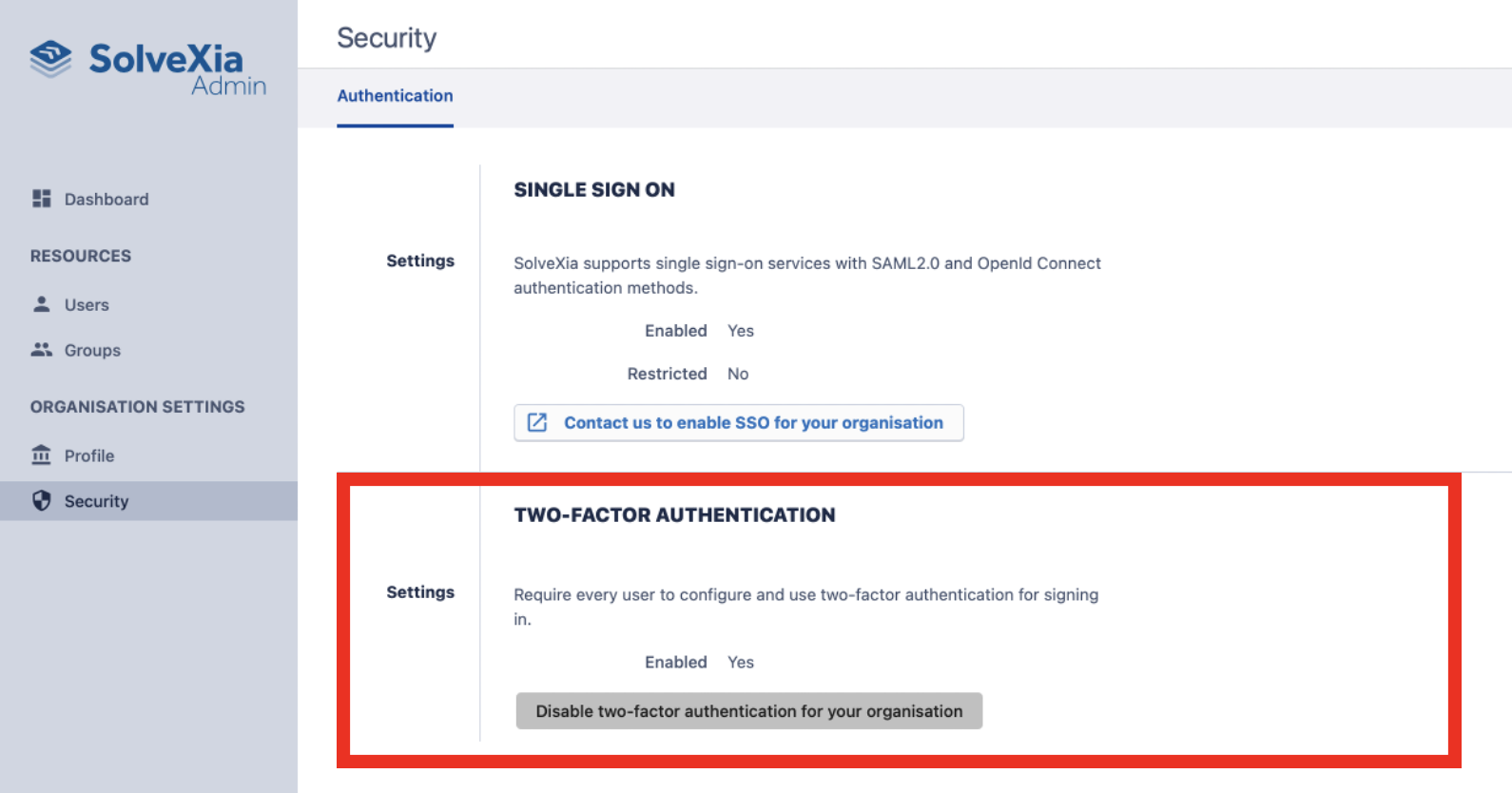
- If at any point you wish to disable multi-factor authentication, click 'Disable two-factor authentication for your organisation.'
Comments
0 comments
Please sign in to leave a comment.