
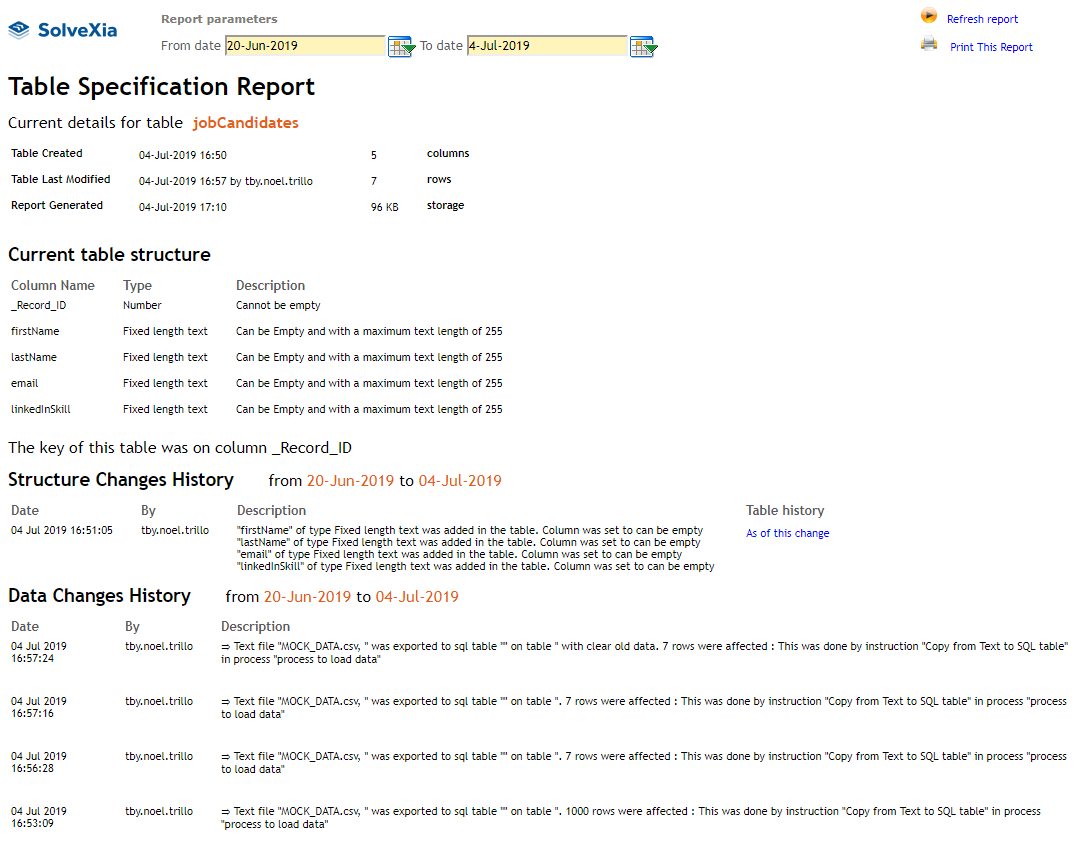
The Table Specification report documents:
- Table properties such as the number of columns, rows, the size on disk.
- How a table is configured, including column names, data types and description.
- Information about how the table has changed over time in terms of:
- Structure, i.e. columns.
- Data, i.e. rows.
The most common scenarios where you might want to generate a specification report include:
- documentation for important business processes,
- risk, audit or compliance reviews,
- to facilitate the communication between teams and team members of how a process works,or
- periodical review of important business processes for correctness.
Step-by-step guide
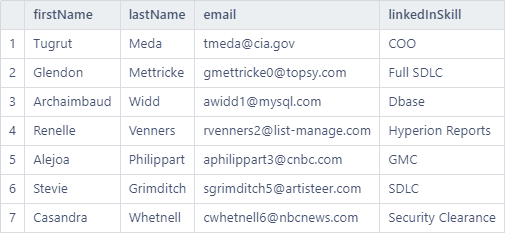
For this example, we will be using the managed table Job Candidates, a preview of the first rows is below:
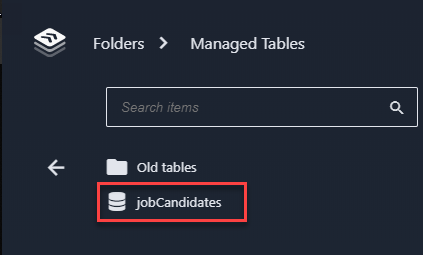
- Locate the table for which you want to generate a specification report and click on it:
- On the left side panel, click on Properties:
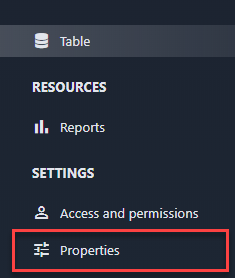
- Under Data features section, click on the Get specification report button:

- A separate browser window will be open with Table Specification report. Adjust the date range for which the structure and data change log information should be shown in the Report parameters at the top and click Refresh report to regenerate the report.
Comments
0 comments
Please sign in to leave a comment.