
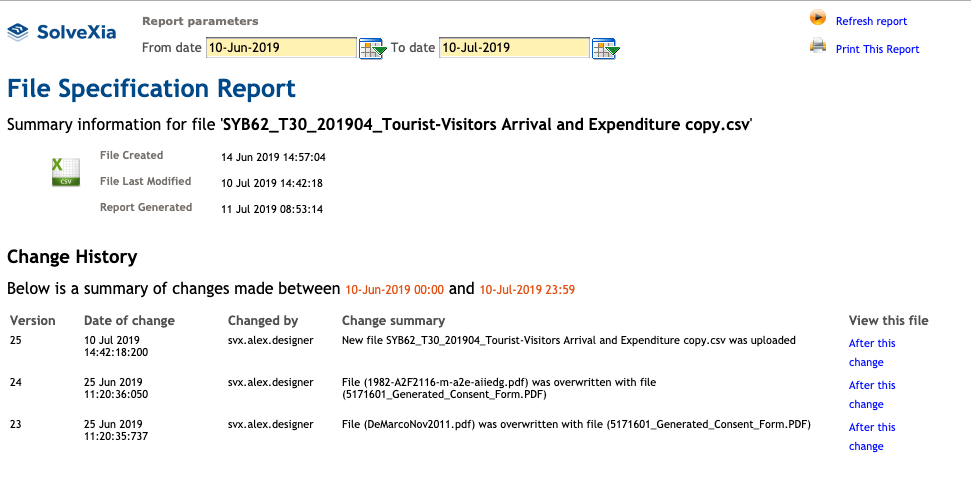
The report gives a summary of changes made between selected dates with fields describing the following:
- the date the change was made;
- the user who made the changes;
- the summary of the exact modifications of the file;
- a copy of the exact file after the change was made.
You can launch file history straight from the action step. To do that:
1. Open the process.
2. Open the action step that links the file you want to launch a history of.
3. Click on the file.
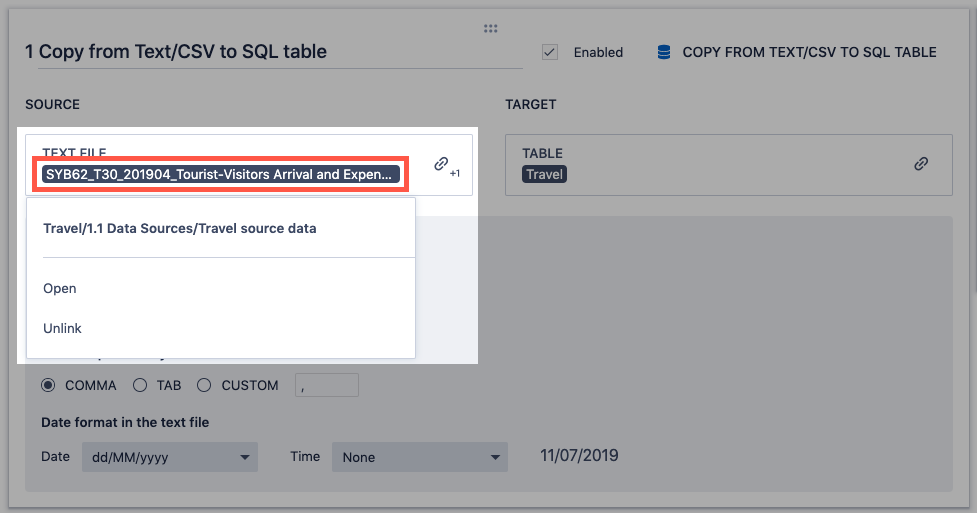
4. Click on Open item from the dropdown menu.
5. The file will be opened in a separate tab.
6. Click on History.
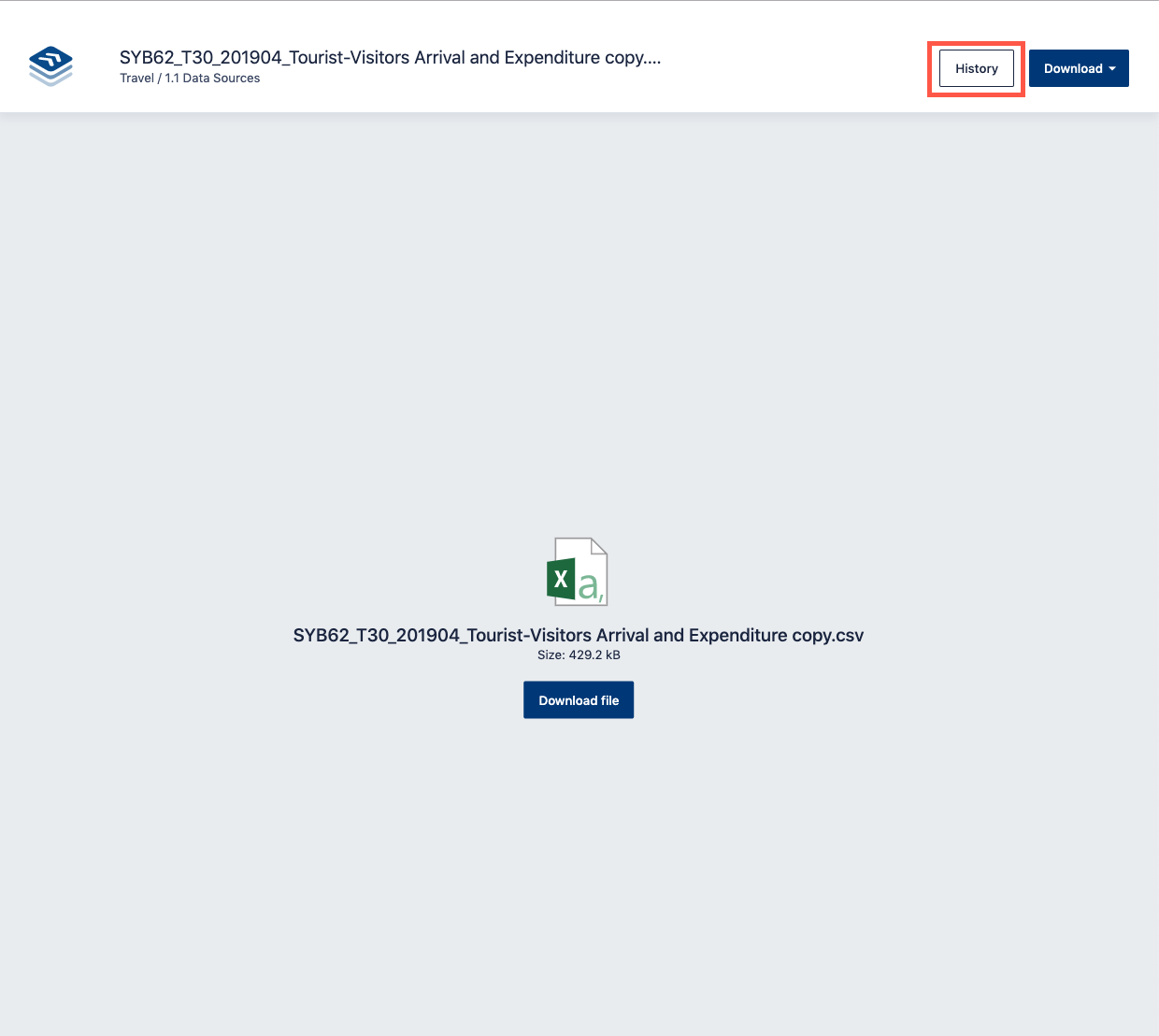
7. The file history will be opened shortly. Adjust the date range for which the structure and data change log information should be shown in the Report parameters at the top, and click Refresh report to regenerate the report.
Comments
0 comments
Please sign in to leave a comment.