
SolveXia processes can be very powerful and operate with lots of tables and files. It is useful to know which step links a specific table or a file for debugging purposes. Filter steps functionality helps to find these steps.
To filter steps:
1. Open the process.
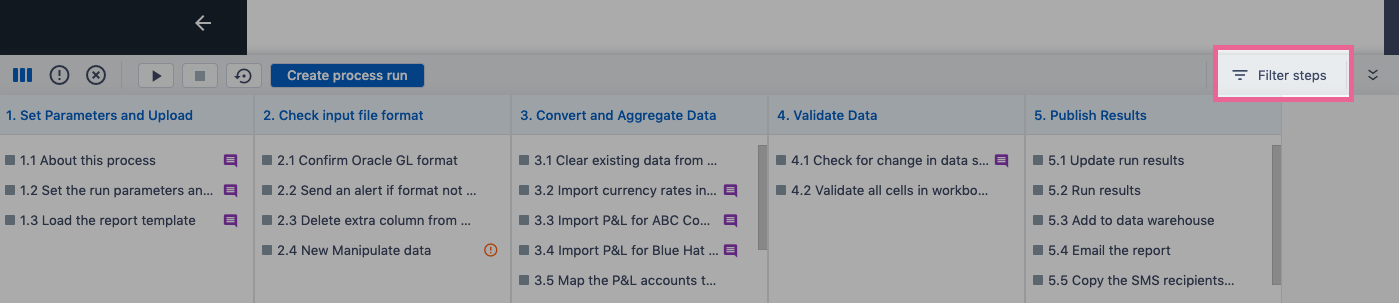
2. Click on Filter steps.
- The modal window will appear.
How to filter steps that use a specific file
1. In the modal window select File from the dropdown and click Select a file to choose the file you want to filter steps by.
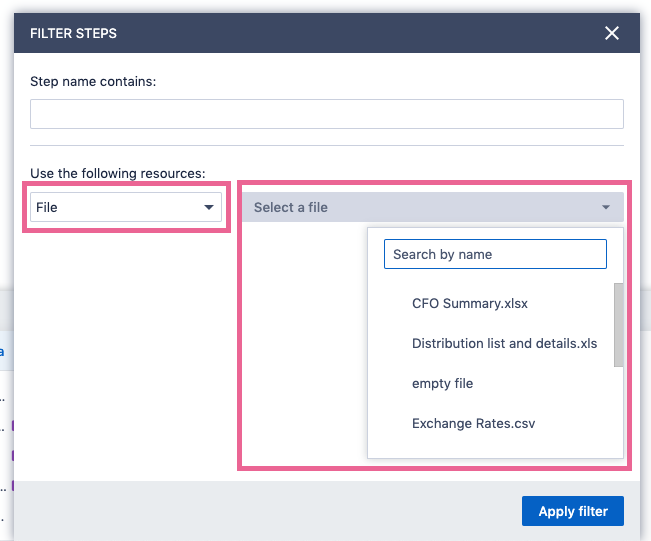
2. Click Apply filter.
3. The process view will be filtered and you will see only steps that link the selected file and the filter will be on.

4. Clear the filter by pressing on X next to Filter in on.
How to filter steps that use a specific table
1. In the modal window select Table from the dropdown and click Select a table to choose the table you want to filter steps by.
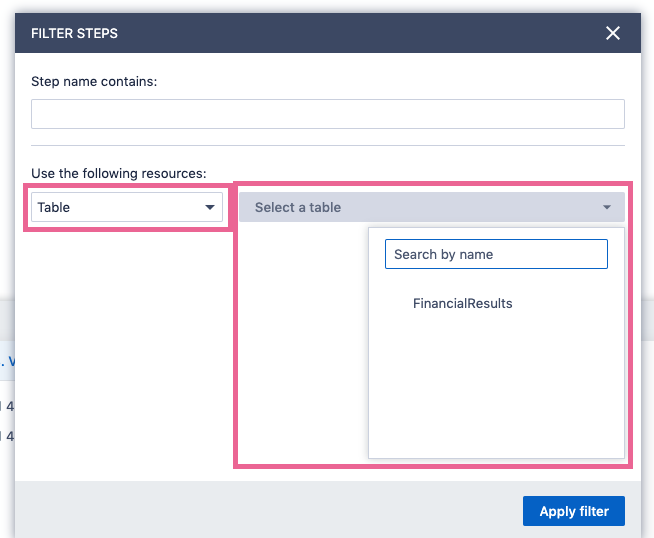
2. Click Apply filter.
3. The process view will be filtered and you will see only steps that link the selected table and the filter will be on.
How to filter steps by name
1. In the modal window type the step name filter.
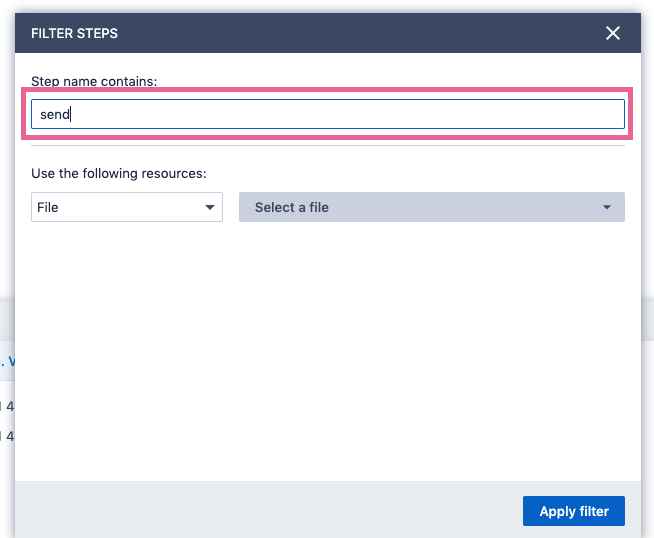
2. Click Apply filter.
3. The process view will be filtered and you will see only steps that has that supplied filter in their name.
Comments
0 comments
Please sign in to leave a comment.