
Copy from Text/CSV to Managed Table is an instruction that allows you to import data from a text (e.g. CSV) file into a managed table.
In order to use this instruction, you should have a table that has the same structure as your text file, that is the number of columns and data type should match.
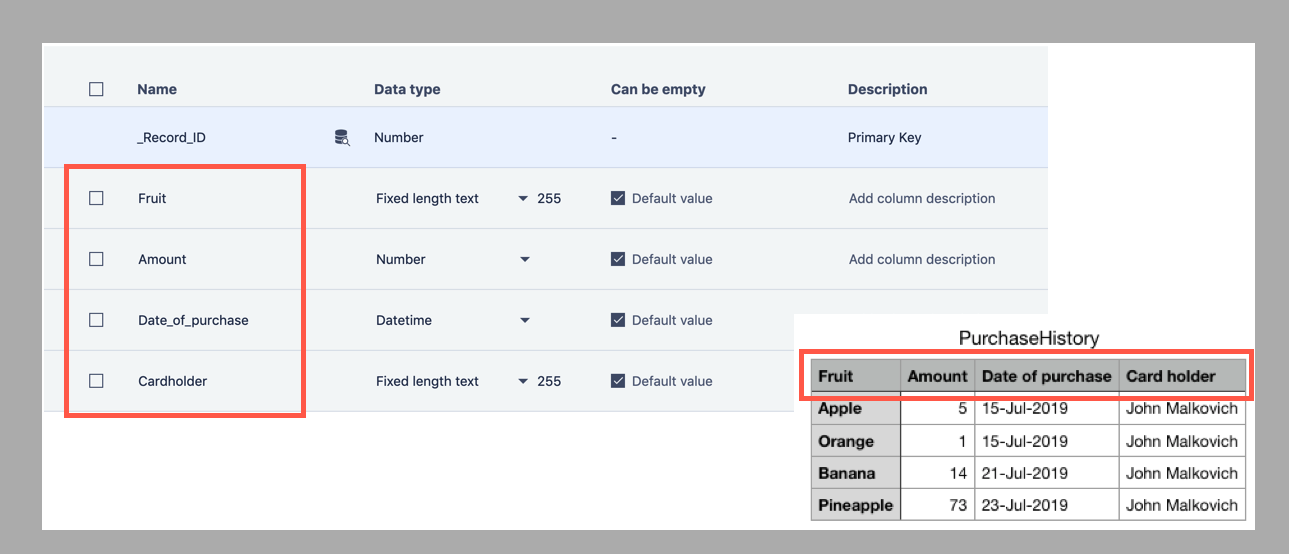
Learn more about how to create a managed table in SolveXia
How to import from Text/CSV to Managed table
1. Open the process.
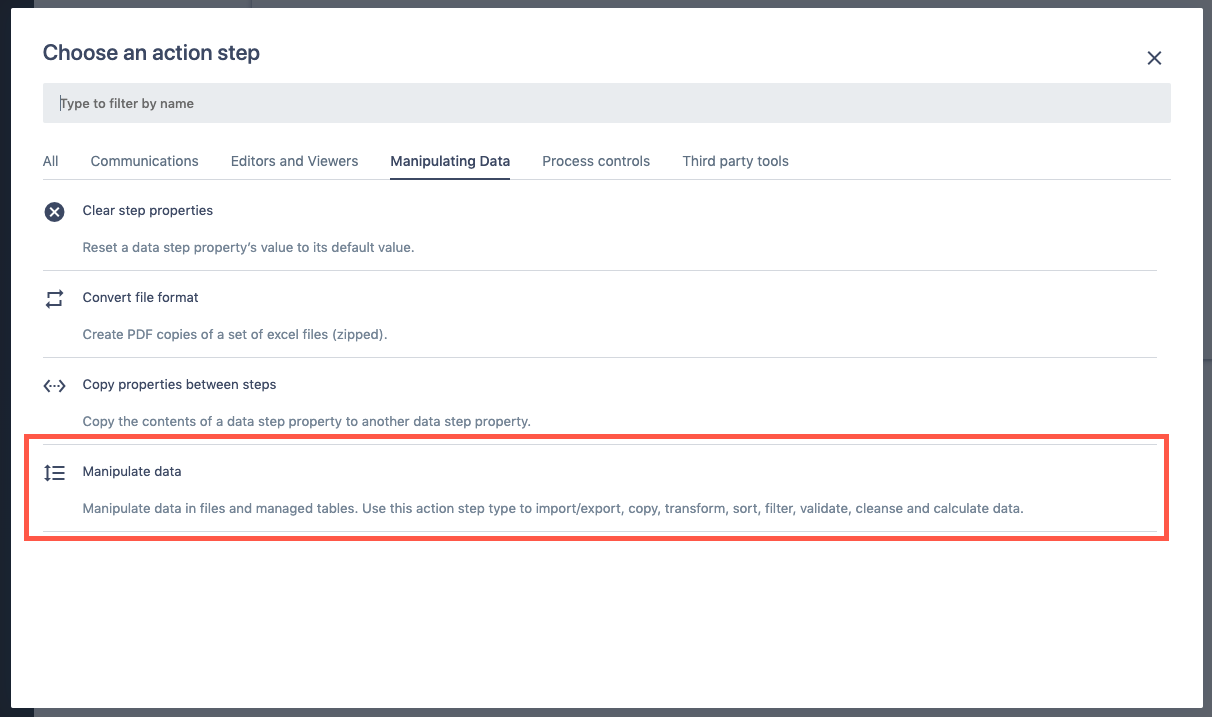
2. Create a Manipulate Data action step.
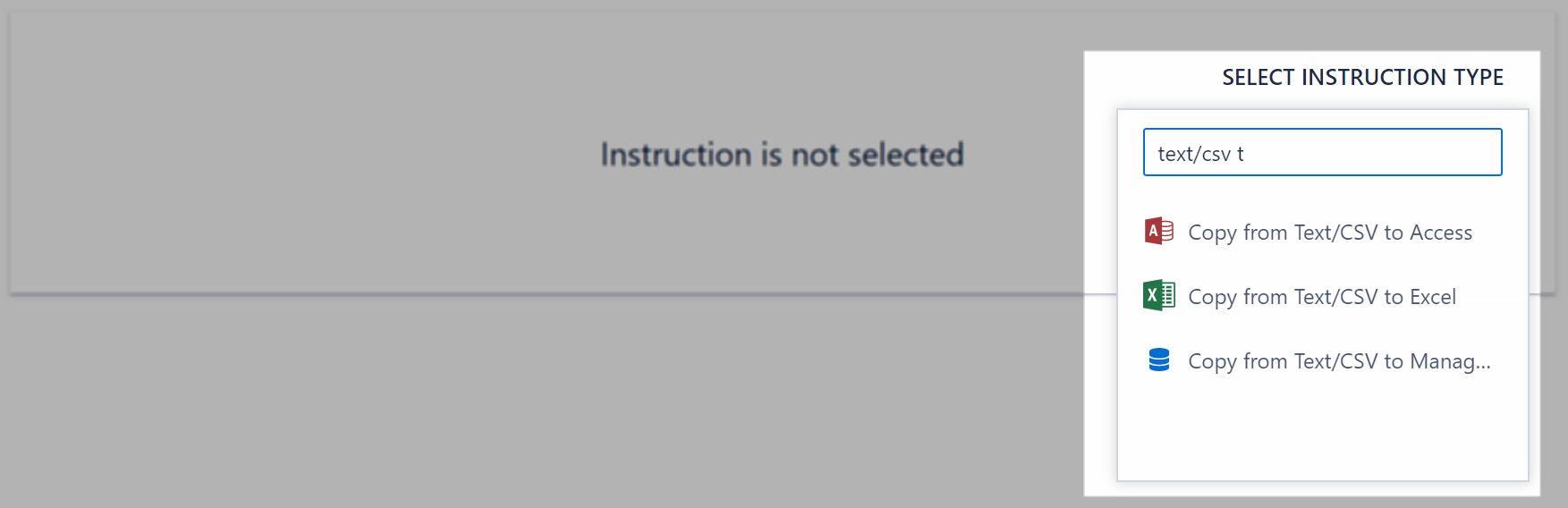
3. Add Copy from Text/CSV to Managed Table instruction.
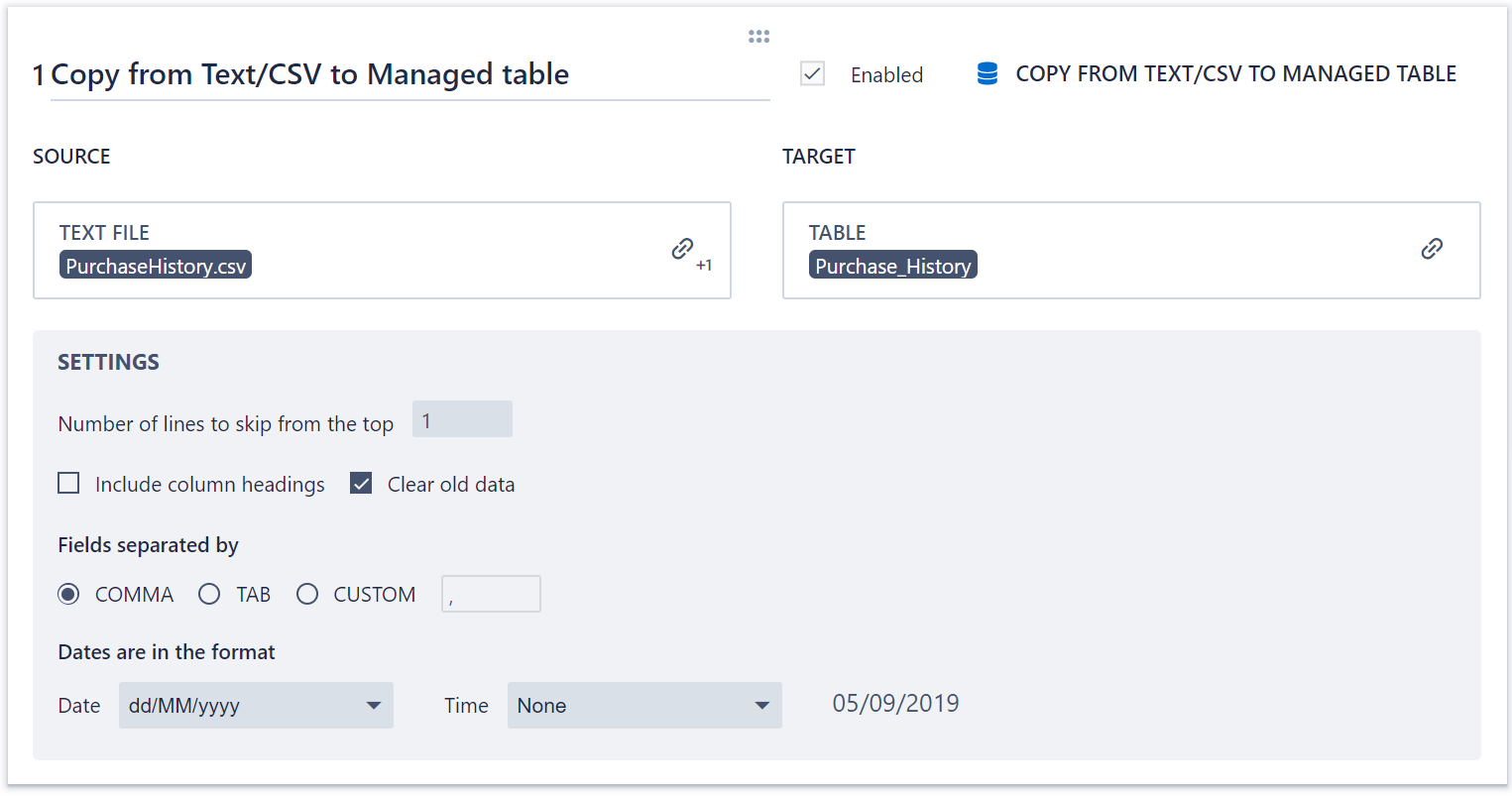
4. Configure the instruction by linking the text file you want to copy to the table and the destination table.
- Specify the type of separators being used in your file. By default this is Comma.
- If your file holds dates and you want them to be stored as DateTime in the SQL table specify the format the dates in the file are stored in. SolveXia recognizes date-times in ISO 8601 format.
- Tick Clear old data checkbox if you want to rewrite the table from scratch every time you run an instruction.
5. Click Save.
6. Run the step.
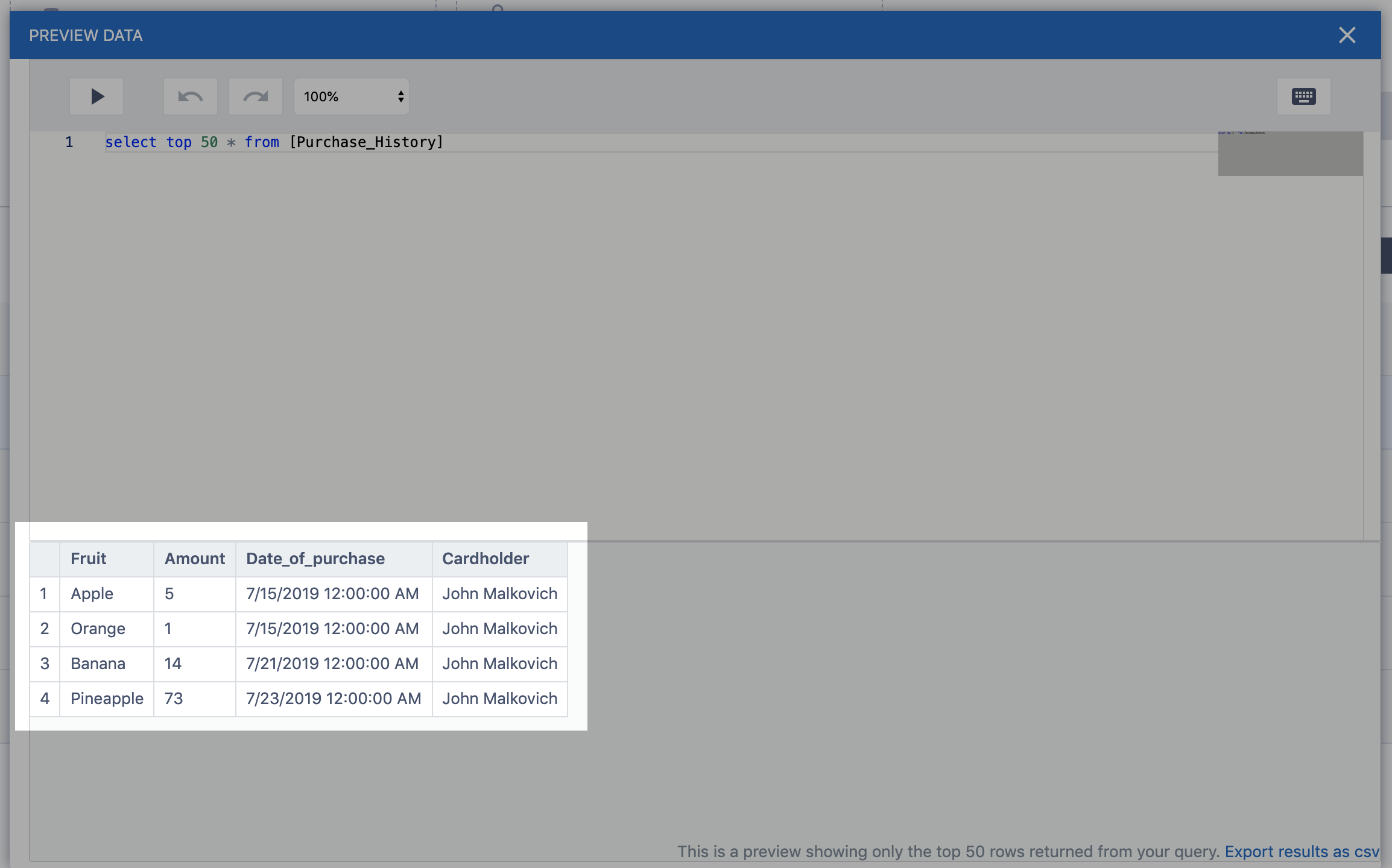
- After that open your managed table and preview the data to see the results that were populated.
Tips and tricks
If there is 1 header row, then the “Number of lines to skip from the top” option set to 1 and the “Include column headings” perform a very similar function.
There, however, is a small difference. If the Text/CSV file was just a header row (with no entries) then setting the “Number of lines to skip from the top” option to 1 would cause the step to fail, whereas ticking “Include column headings” would cause the step to continue.
Note: Most of the time you would not use both the “Include column headings” option and the “Number of lines to skip from the top” option at the same time.
Comments
0 comments
Please sign in to leave a comment.