
This guide provides an overview of Process Skins in SolveXia. Process Skins allow Process Designers to customise how a process looks in Subscriber View. Designers can change the names of labels in Subscriber View, allowing a tailored experience for users.
This guide assumes that you are a SolveXia Process Designer and have created a process and enabled the process for the Subscriber View. You should also understand how to view and access your process in Subscriber View.
Accessing the Process skin
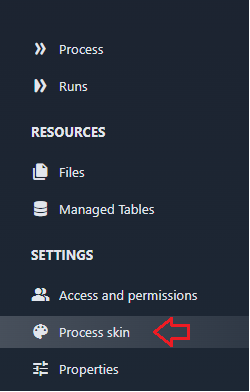
Open your process in the Designer View. On the left of your screen, you should see an option for the 'Process skin' under Settings. Click to open the Process skin settings:
You should be greeted with a page similar to the below:
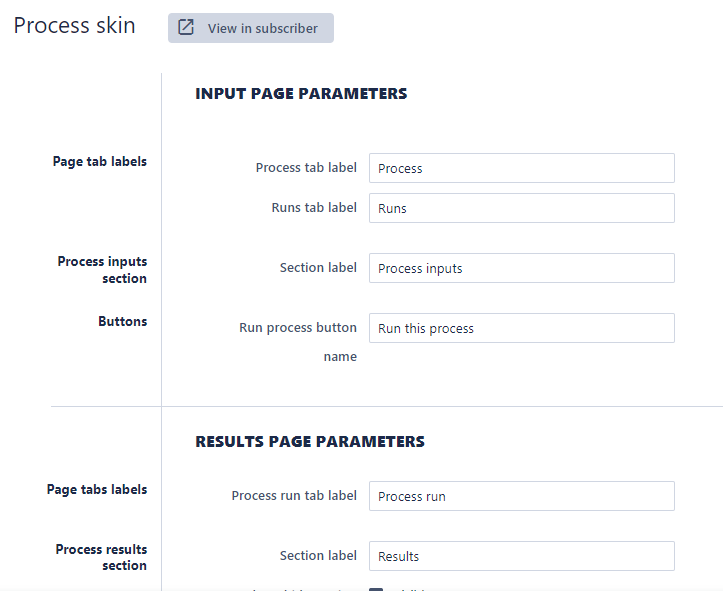
Configuring each Process Skin option
There are several Process Skin options to customise the Subscriber View. This includes:
- Process tab
- Run tab
- Process inputs section: Section label
- Run process button
- Process run tab
- Process results section: Section label
- Process progress section: Section label
- Process inputs section: Section label
- Create another run button name
Please see below for a guide for each option.
1. Process tab label
The first feature is the process tab label. Let's demonstrate how this works by changing the process tab label to 'Wiki Tab Label'.
We then click the 'View in Subscriber' to view our changes.
| Setting | Subscriber View |
 |
 |
We can see that it changes the label under the description. We can repeat this process for the remaining features, noting what it changes in the subscriber view.
2. Run Tab
| Setting | Subscriber View |
 |
 |
3. Process inputs section: Section label
Change implemented:
| Setting | Subscriber View |
 |
 |
4. Run process button
| Setting | Subscriber View |
 |
 |
5. Process run tab
| Setting | Subscriber View |
 |
 |
6. Process results section: Section label
| Setting | Subscriber View |
 |
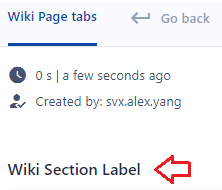 |

There is an additional feature here being the show/hide section. This feature simply hides the entire section as seen here:

7. Process progress section: Section label
| Setting | Subscriber View |
 |
 |
This section similarly features a show/hide function which hides the whole section like above.
8. Process inputs section: Section label
| Setting | Subscriber View |
 |
 |
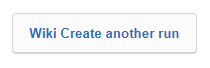
9. Create another run button name
| Setting | Subscriber View |
 |
 |
We have now covered the nine customisations that we can implement on the subscriber view. Should you have any questions/comments please feel free to comment below or email us on support@solvexia.
Comments
0 comments
Please sign in to leave a comment.