
SolveXia Admin provides two ways to manage user access to processes, tables, reports and dashboards in the system.
Learn more about managing user access though assigning access to groups.
To do that:
1. Open SolveXia Admin.
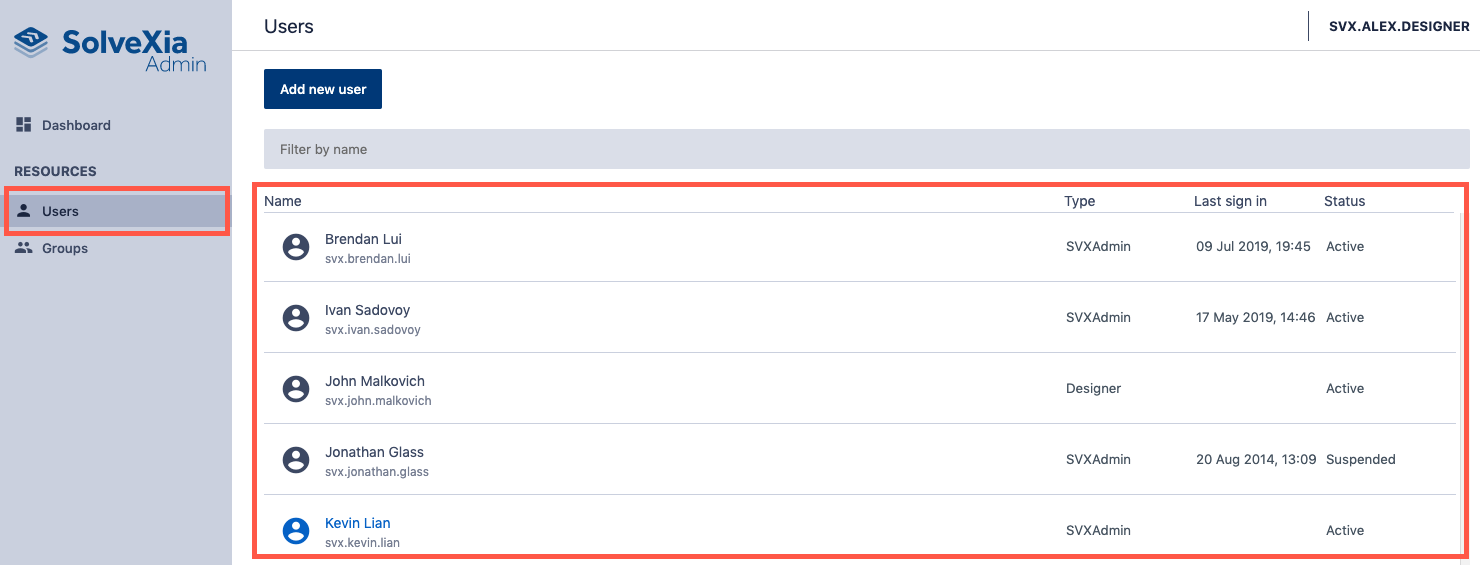
2. Navigate to Users page from the menu on the left.
3. Select the user from the list you want to manage access for.
How to manage user access through resources
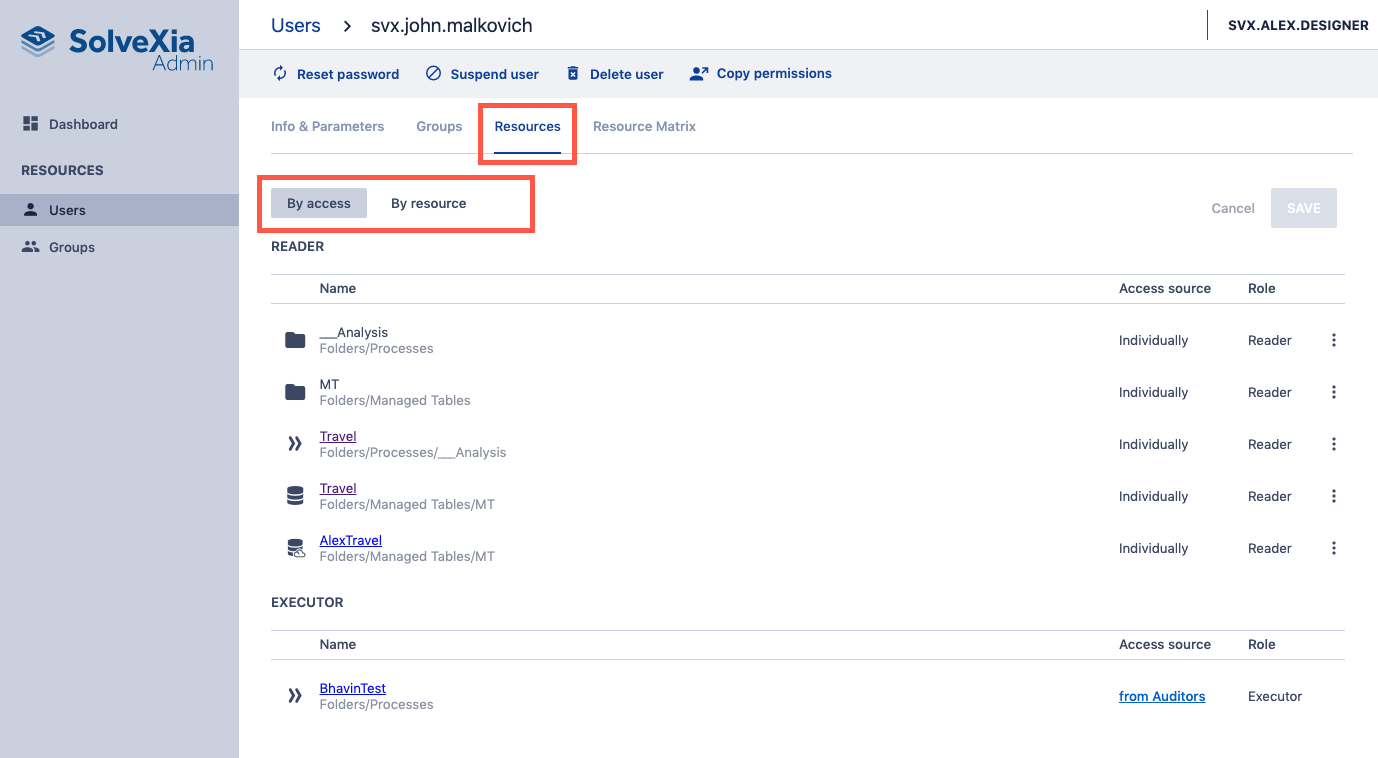
1. Click on Resources tab.
2. View by access or by resource.
by access: View permissions based on user access roles: Reader, Executor, Editor and Owner.
by resource: View permissions based on the type of the resource: Folder, Process, Managed Table, Virtual Table, Report and Dashboard.
3. Click on the menu* on the right of the resource you want to change access to.
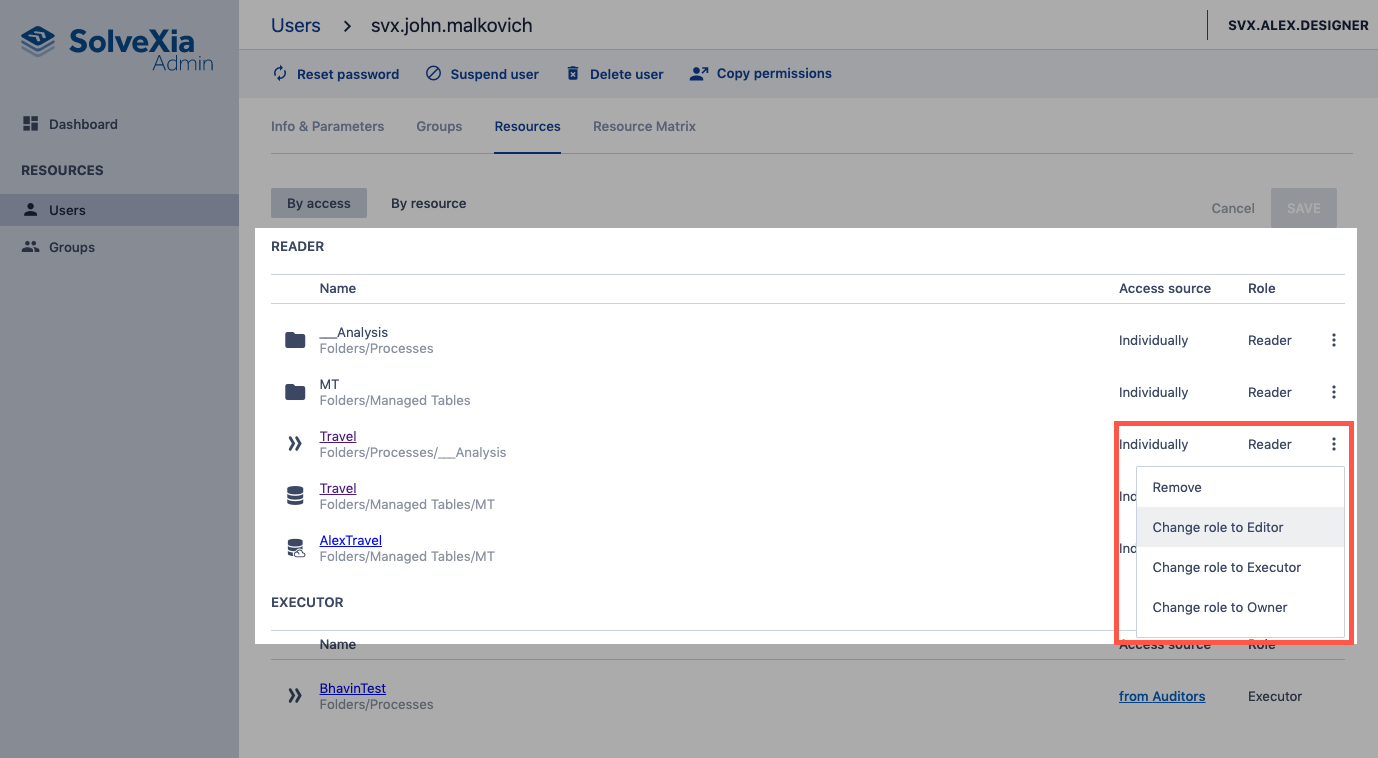
4. Click Save.
* Please note that you cannot change access if the resource is shared with the group the user belongs to.
How to manage user access through resource matrix
1. Click on Resource matrix tab.
2. Update permissions selecting relevant checkboxes*. Use Shift + Click to select multiple resources at the same time.
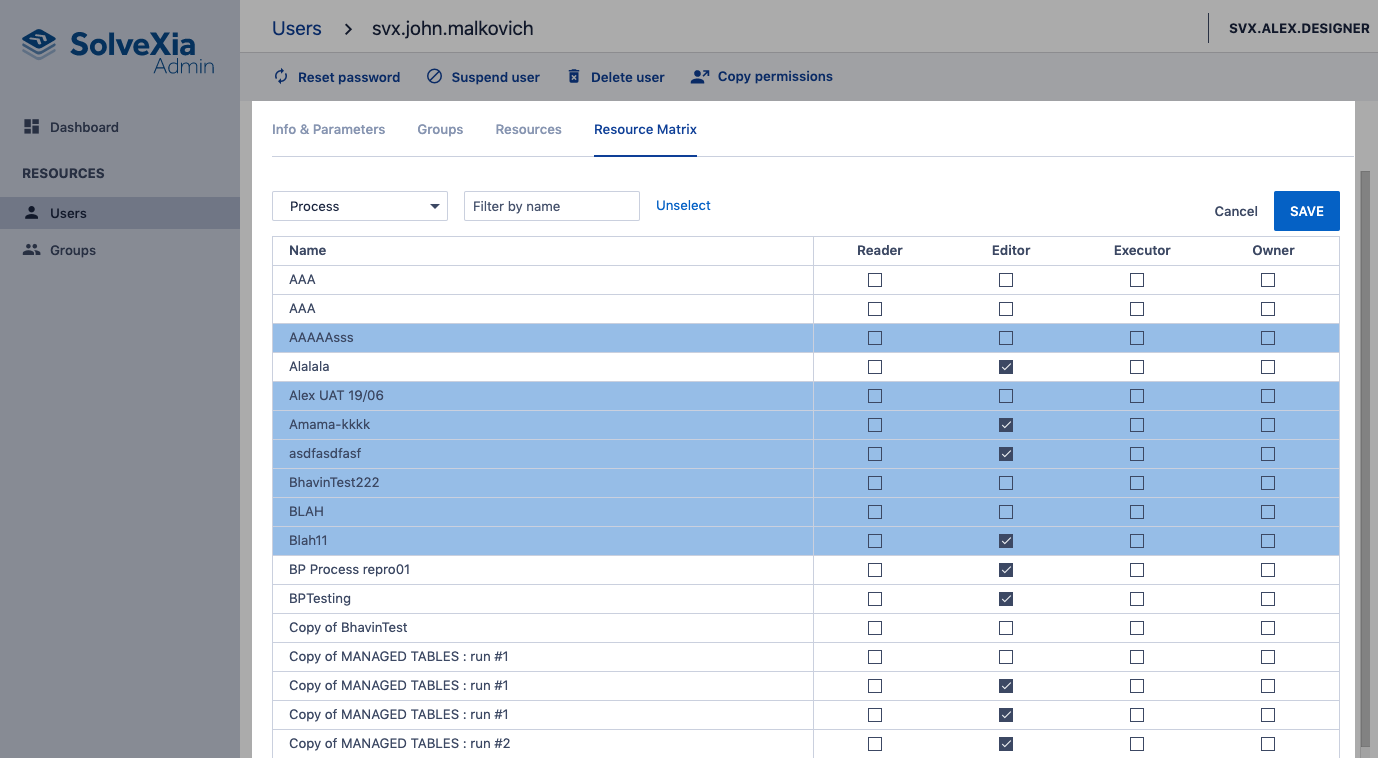
3. Click Save.
* Please note that resource matrix shows only individually assigned permissions.
Comments
0 comments
Please sign in to leave a comment.