
This article covers how you can link an instruction/step to a file that is located in another separate process.
All instructions in SolveXia that allow you to link to a file can also be linked to files in any process within the current database (according to your account's read permissions).
Step-by-step guide
1. Click on the link button
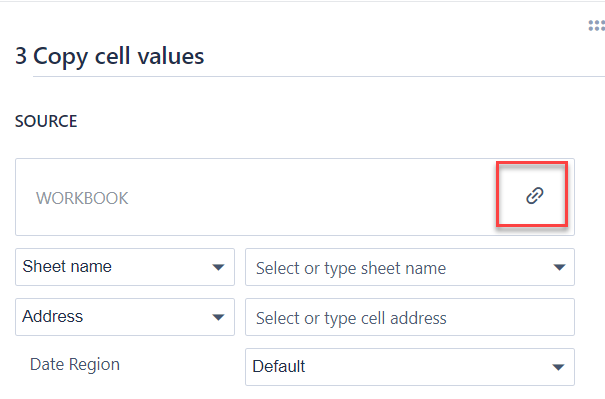
2. The following pop-up box will appear
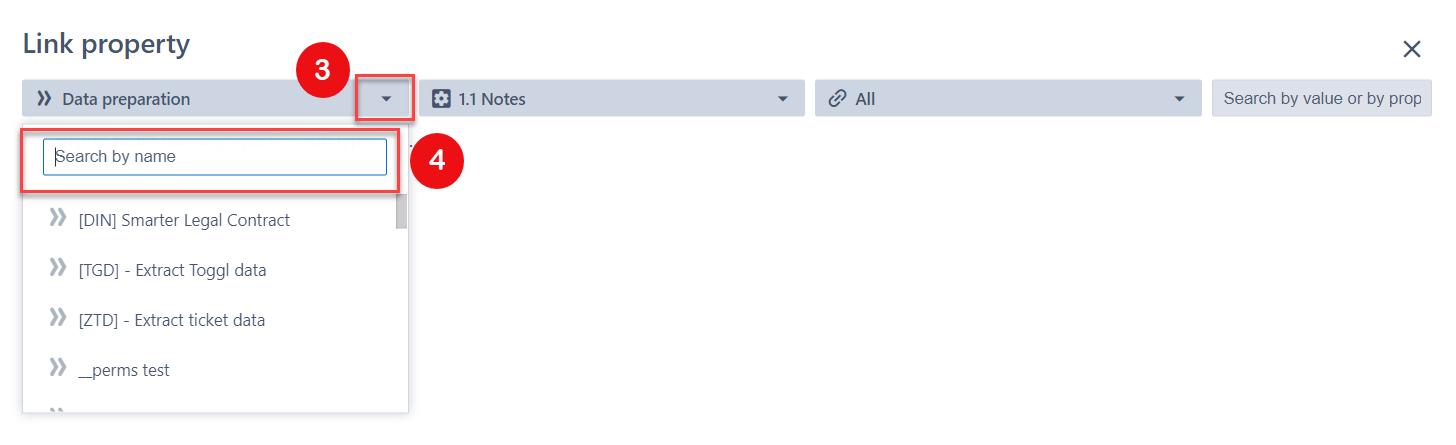
3. Click on the arrow next to the name of the current process to display the drop-down of all available processes for you to link to.
4. Select or search for the process you wish to link by its' name.
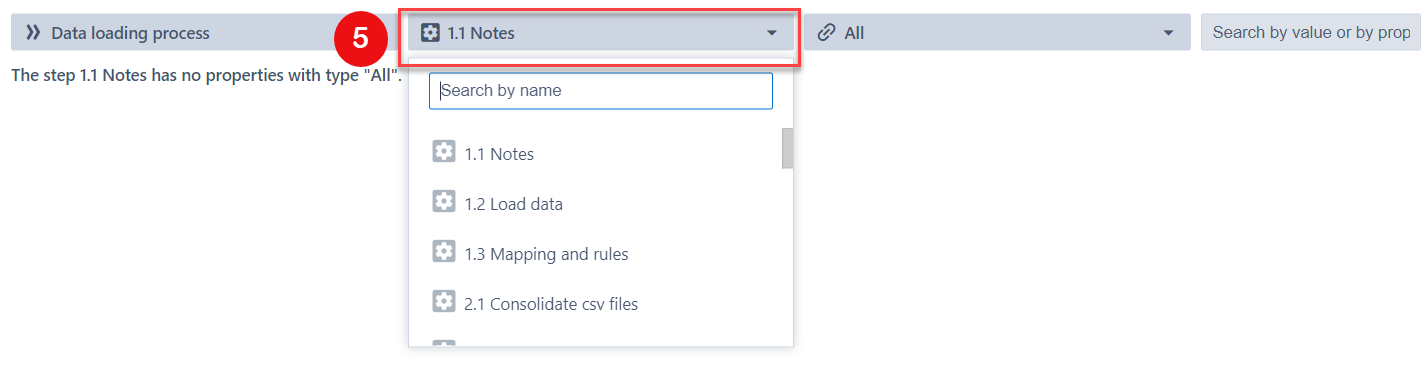
5. Once you have selected the appropriate process, click on the second drop-down to choose the step that contains the file you wish to link.
6. Once you have selected the step, click the "Link" button that appears on the right of the file you would like to link.
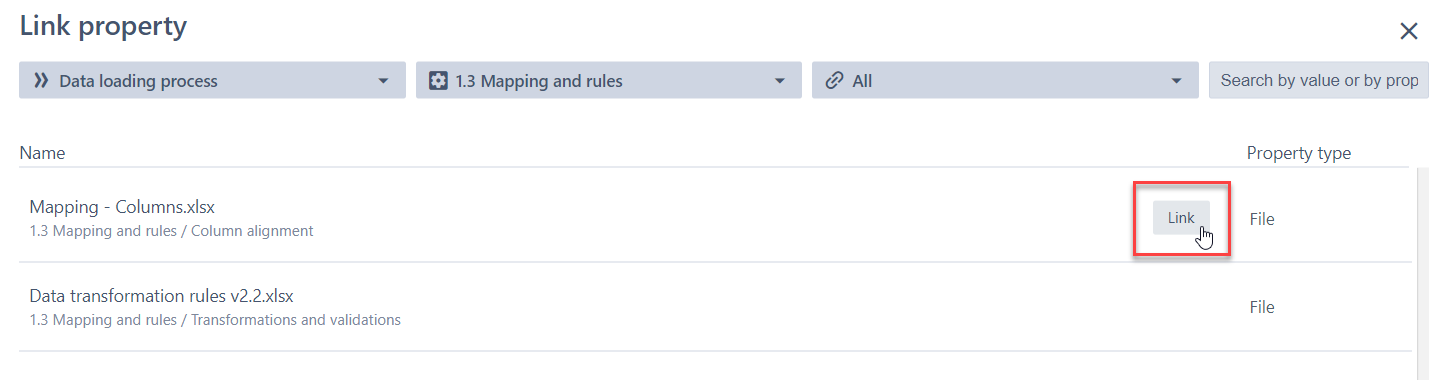
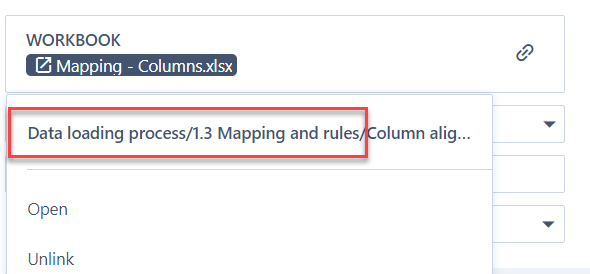
The file is now linked. To see the name of the process and step that the file came from, click on the file name:
Comments
0 comments
Please sign in to leave a comment.