
The Map values by key instruction can be used to map data together in Excel based on a common field or lookup value.
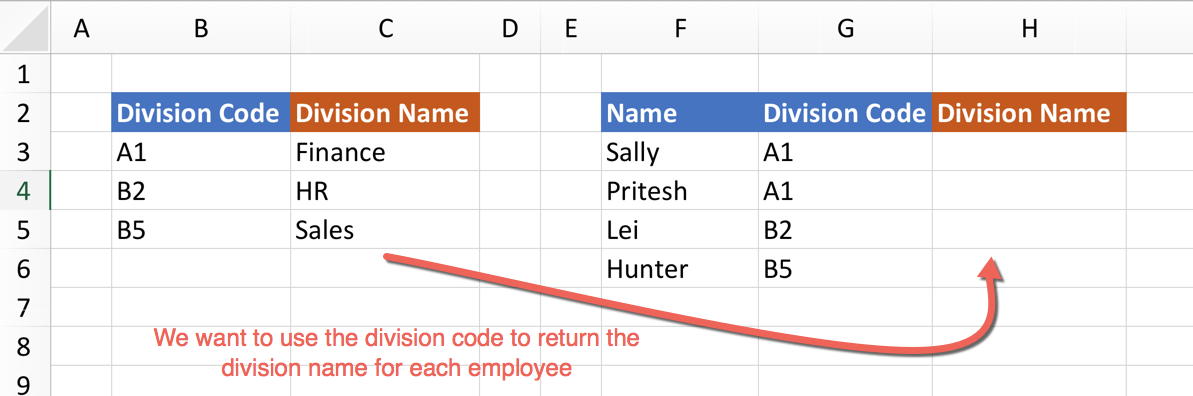
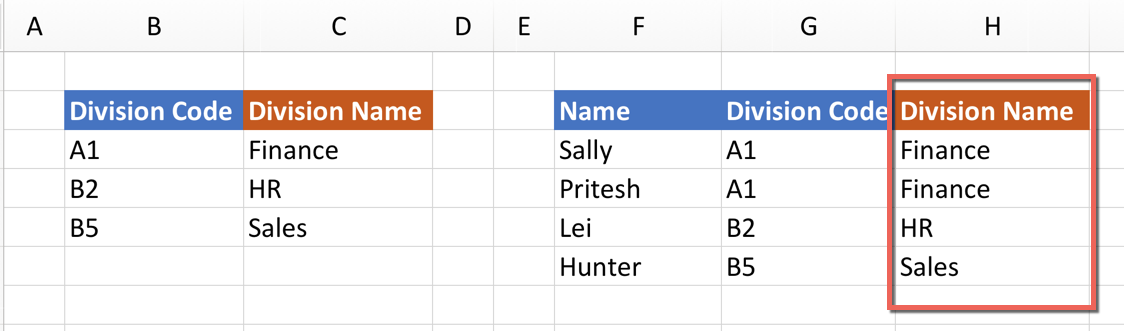
In the example below, we will use the instruction to populate column H with the name of the division that each employee works in, using the division codes in column B and G:
Steps:
1. Create a Manipulate Data action step so that you can add and use instructions.
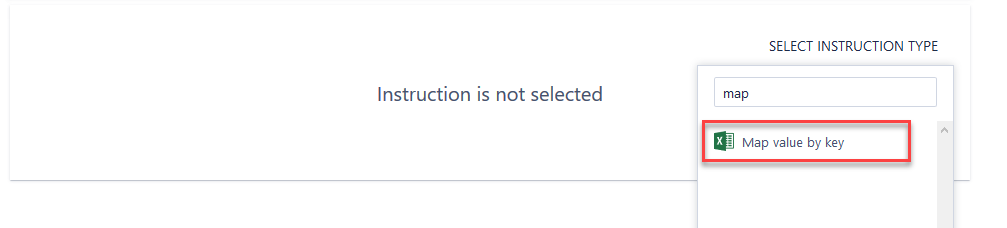
2. Add a Map values by key instruction
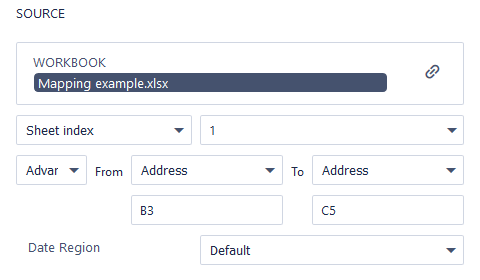
3. Configure the source range to include the list of division codes and names:
4. Set the source key column (i.e. the column that we plan to map on) to "B" and sent the value column (what we want to copy across to the target range when a match is found) to "C":

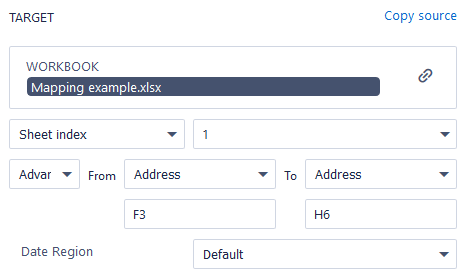
5. Configure the target range to include the list of employees (including the empty column for the division name):
6. Set the target key column to G (i.e. the division code) and the value column to H (the empty column that we want to contain the division name)

7. Save and run the step.
8. After the step has run, the target value column (step 6 above) should now be populated:
Useful tips and resources:
You can also configure actions that the step should take when unmapped values are found (i.e. where a source key does not exist in the target key column):
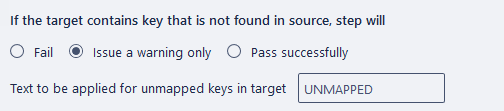
Unmapped records will be automatically extracted to a log file that you can then use in the process - for example, you can email the log back to the user.
Comments
0 comments
Please sign in to leave a comment.