
Commonly, there are situations where cell values which belong to a particular category must be matched or ‘mapped’ to cell values of a corresponding category. An example of such a situation may be where client names need to be matched to geographical regions. Manually, such a situation may be very time consuming and prone to human error. To ‘map’ just a single client name, a person would first need to determine whether that name exists in a reference table (a table of client names and geographical regions, that is, a ‘map’). Then, that person would need to search for and find that name in the reference table to discover the region to which it belongs. SolveXia can be used to complete such ‘mapping’ procedures in a fraction of the time required to complete them manually.
Before we get started
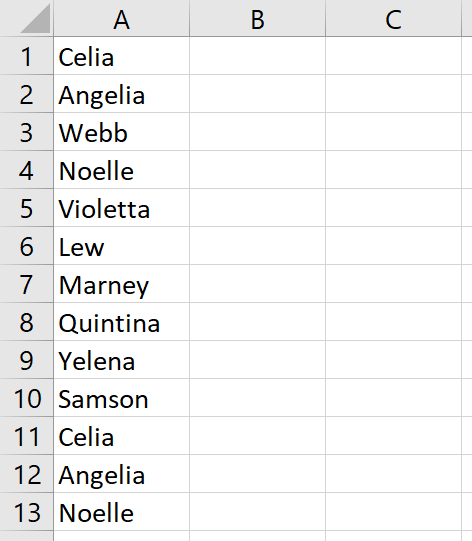
Let’s suppose that you have two files. One file contains a list of names which need to be ‘mapped':
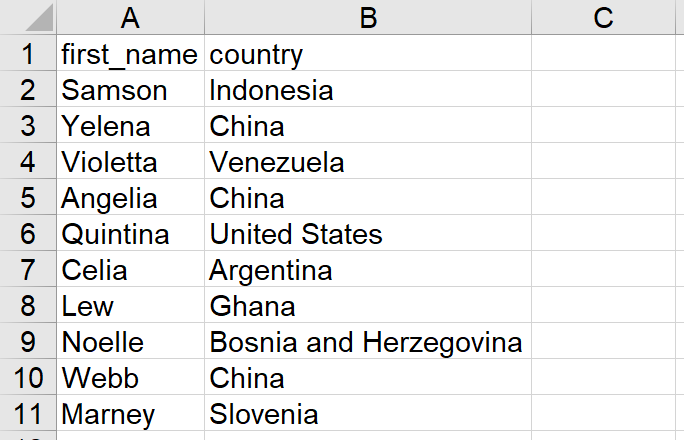
The other file contains the ‘map':
The cleanest way to perform this ‘mapping’ procedure would be to:
1) create an Excel workbook with 2 blank worksheets (we can refer to this as the ‘interim file’)
2) Create a template file to clear any data from previous runs
3) copy the list of names to one of the worksheets
4) copy the ‘map’ to the other worksheet
5) in the first worksheet, use formulas to return the appropriate region names in the column next to the list of names
Please note that the four files used in this article are attached.
Step-by-step guide
1. Create an Excel workbook called "mapping interim.xlsx" with 2 blank worksheets called "Names" and "Map". This will be the interim file.
Also, create a copy of this Excel workbook called "mapping interim template.xlsx".
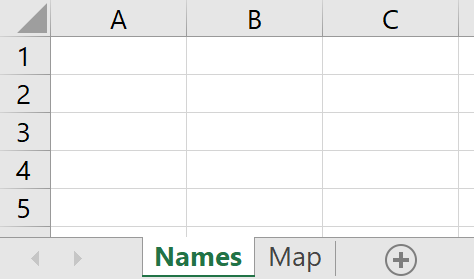
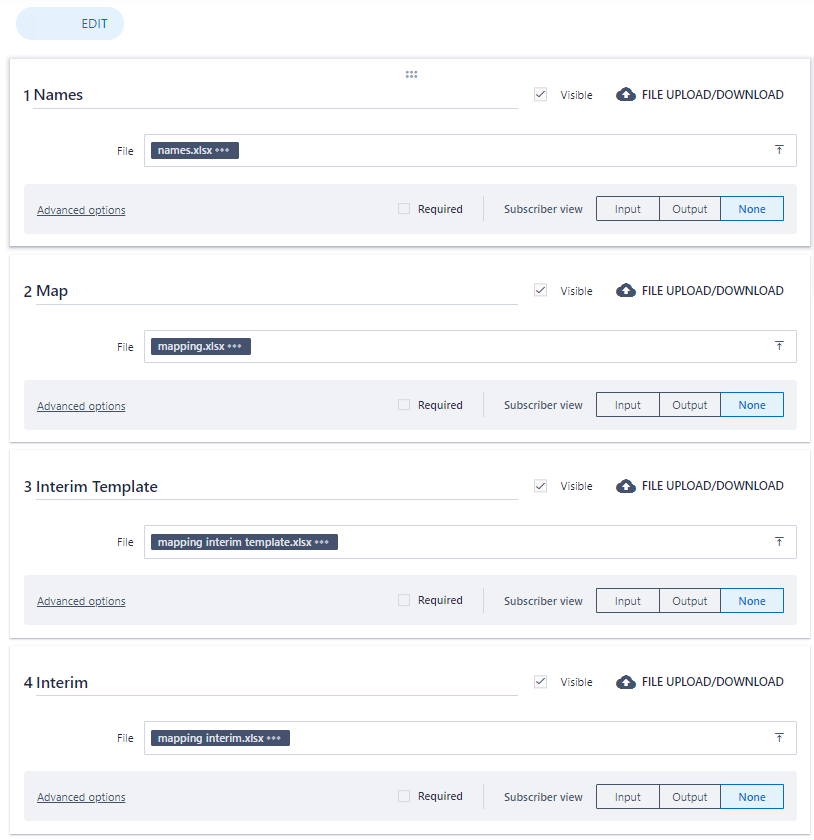
2. Create a data step with 4 blank file upload/download placeholders.
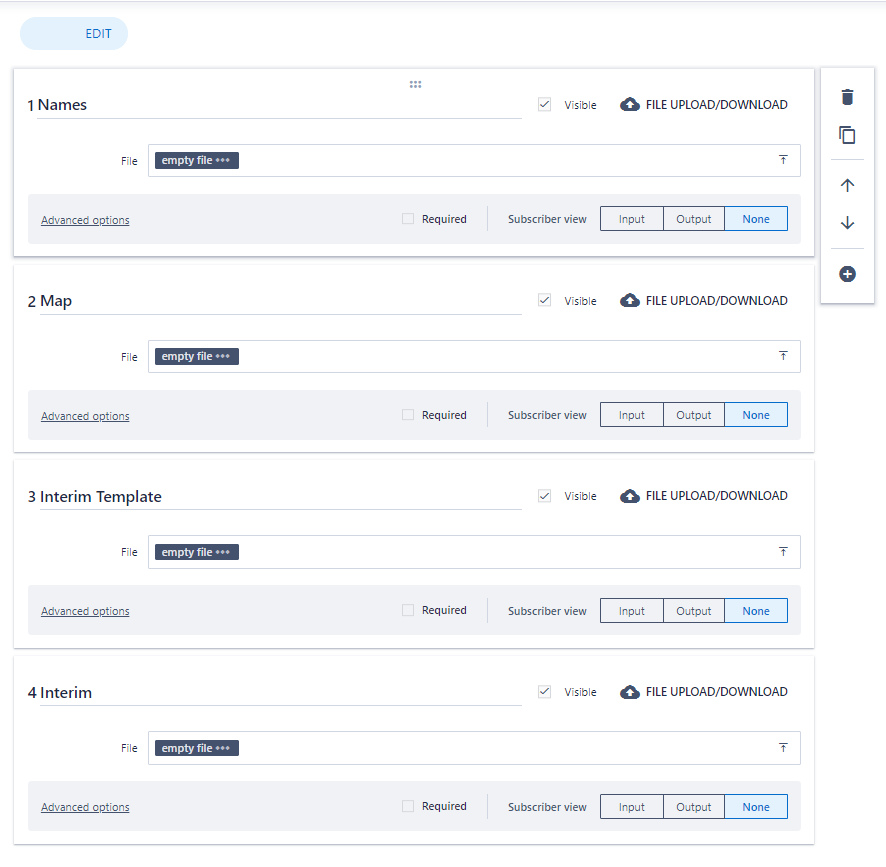
3. Upload the relevant files into the file placeholders and then click the blue save button in the top right:
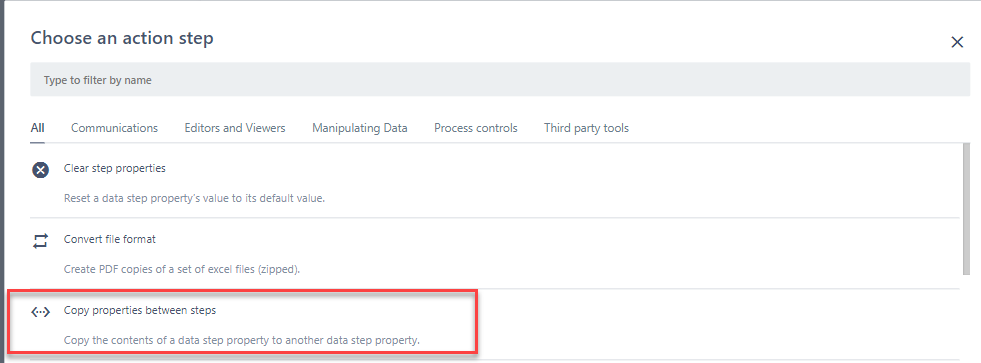
4. Create a copy properties between steps action step. This will be used to create a blank copy of the interim file each time the process is run.
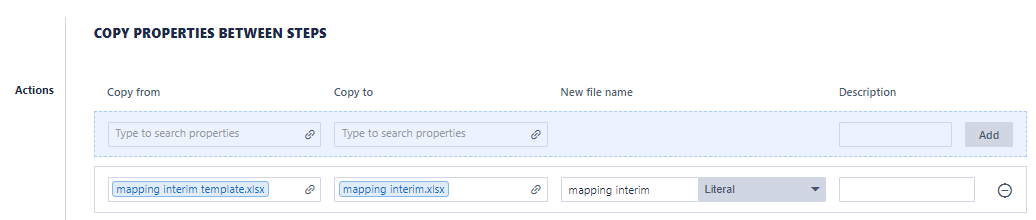
5. Configure the copy properties between steps action step as shown below:
6. Create a Manipulate Data action step.
7. Add a copy cell values instruction to [6] to copy the list of names from the ‘Names’ file to Column A of the ‘Names’ worksheet of the interim file.
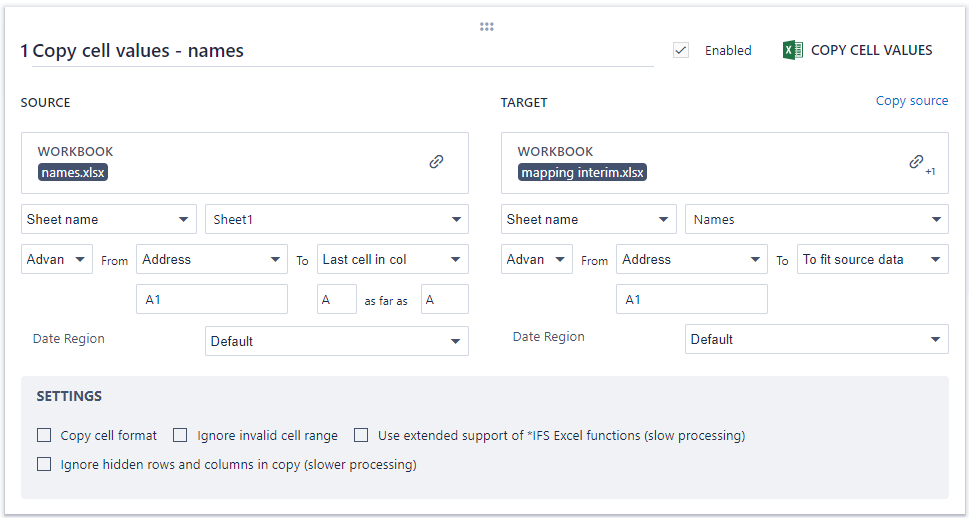
8. Create another copy cell values instruction to [6] to copy the ‘map’ from the ‘Map’ file to the ‘Map’ worksheet of the interim file.
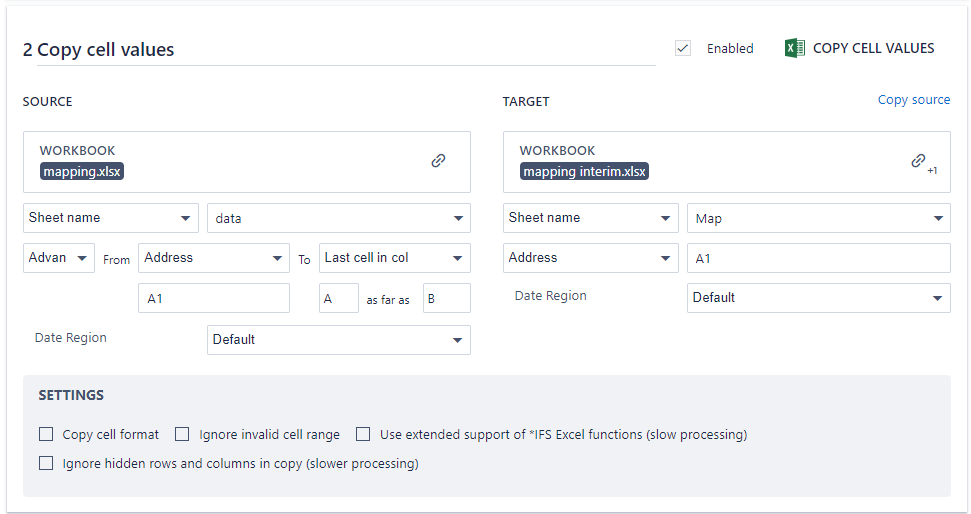
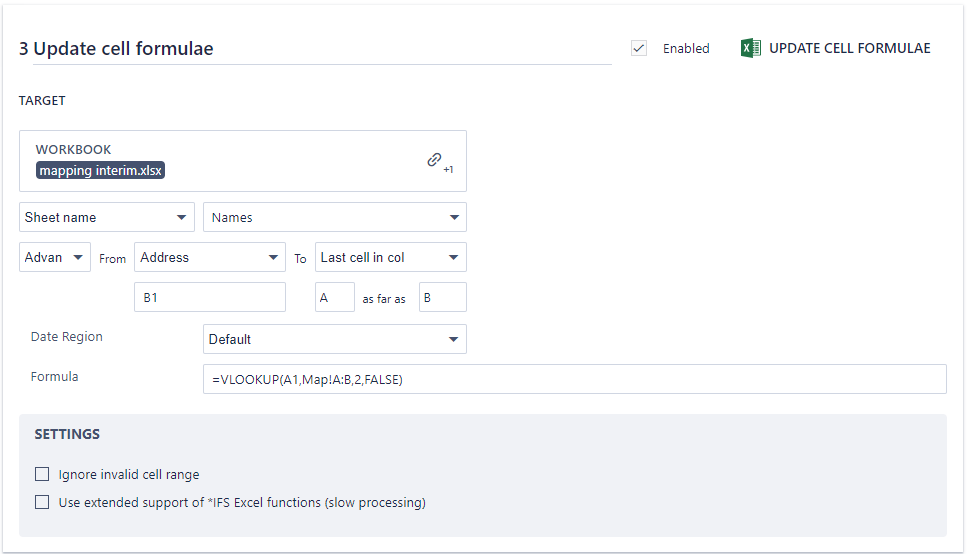
9. Create an update cell formulae instruction to [6] to update “=VLOOKUP(A1,Map!A:B,2,FALSE)” into Column B of the ‘Names’ worksheet of the interim file.
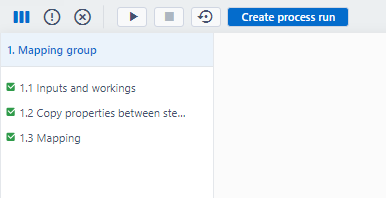
10. Save and run the process.
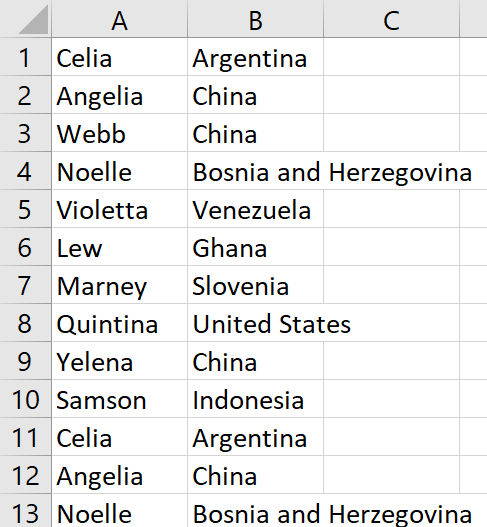
11. After the process finishes running, download and open the target file. You will see that in the ‘Names’ worksheet, the list of names which were copied into Column A has been mapped to the appropriate regions:
Tips and Tricks
This article only details one way in which to automate a mapping procedure.
Other methods possible method may include (please note that this is not an exhaustive list):
- using managed tables and SQL queries to perform mappings
- The copy cell formulae instruction could be used to drag down formulas (if the template already contained the VLOOKUP formula from [9] in cell B1). This instruction is particularly useful if there are multiple columns that need to be brought in with the mapping.
Files used in this article
Comments
0 comments
Please sign in to leave a comment.