
This article covers the "Copy keys selectively" instruction in SolveXia.
What the instruction does
The "Copy keys selectively" instruction takes in a column from the source range (the column that contains the "keys") and copies the values that satisfy a range of criteria. If a value does not satisfy the criteria, the target range will replace it with the last matched value.
How to use the instruction
To better illustrate this, we will go through an example:
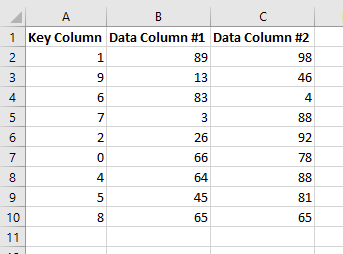
The screenshot given above shows the source data.
We will try applying the "Copy keys selectively" instruction on column A.
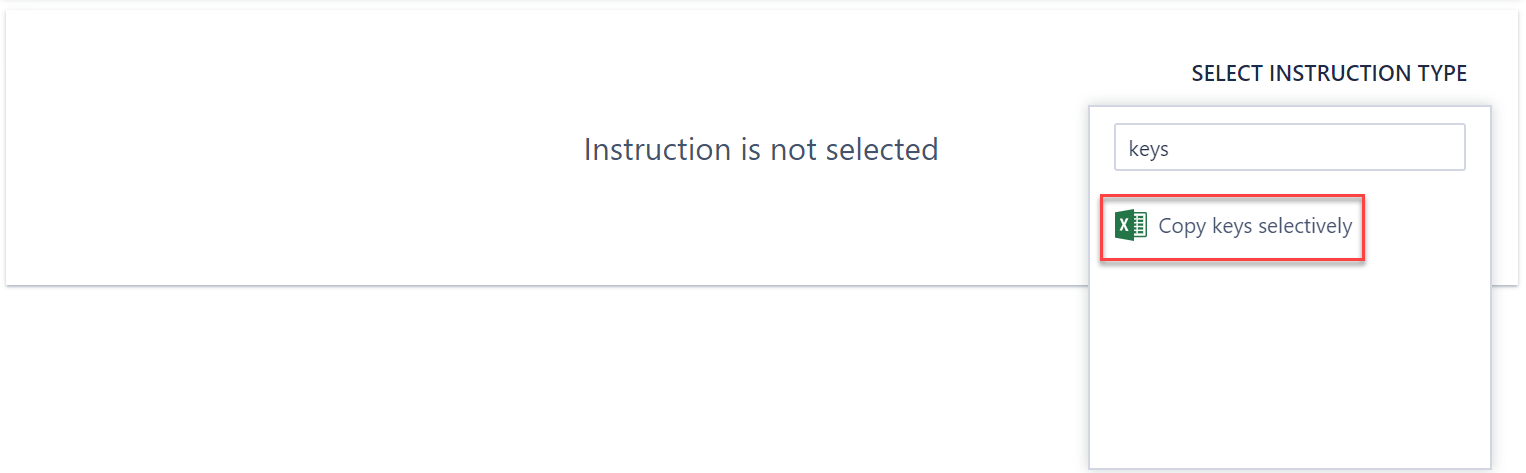
First, we need to add an action step for Multiple file manipulations and select "Copy keys selectively":
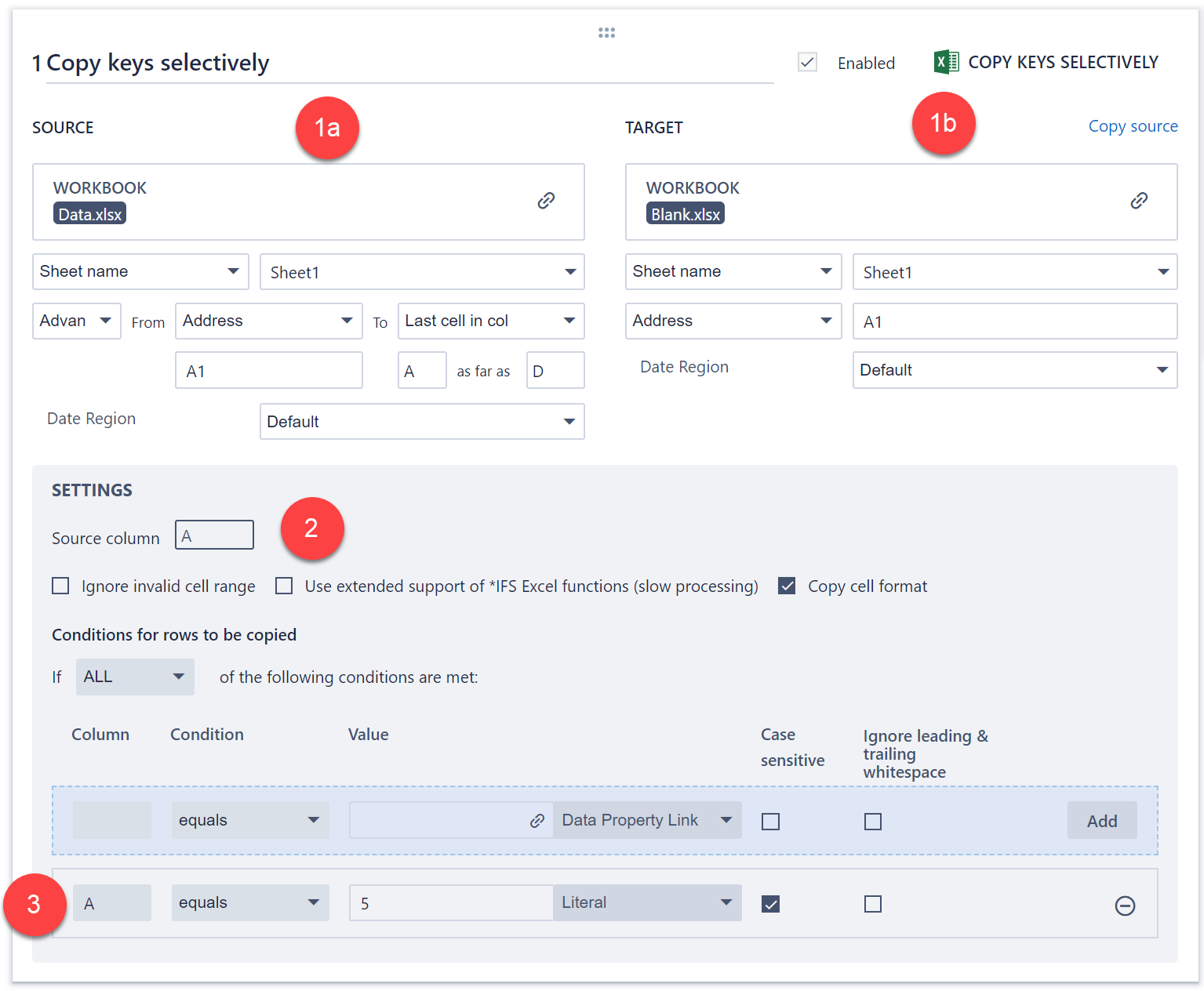
1. The step is then configured by first selecting the appropriate source and target ranges.
The source range is where the "key" column is located (1a) and the target range is where you wish the "copied" keys to be pasted (1b).
Note: that the target range can also be in the same spreadsheet.
2. Next, the Source Column needs to be indicated. In this case, we wish to process column A.
3. We then input the desired criteria for a key to be copied (in this case, we wish to copy all keys that are greater than 5).
Note: You will need to enter the condition in the blue row and then click Add.
Save the step.
After the step has been run successfully, the target range will look like this:
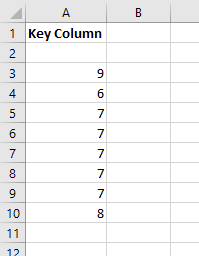
Note that only the keys that satisfy the criteria are copied over (keys that are > 5).
Furthermore, for the keys that don't satisfy the criteria, the last matched value is copied instead.
Comments
0 comments
Please sign in to leave a comment.