
This step creates a placeholder for rich text notes, where a range of formatting options can be used to enhance the documentation. This is useful for maintaining a change log or other reference documentation for designers and users of a process.
Learn more about how to add steps to the process
How to add View rich text notes step to the process
1. Open the process.
2. Click on the group menu and select Add action step menu item.
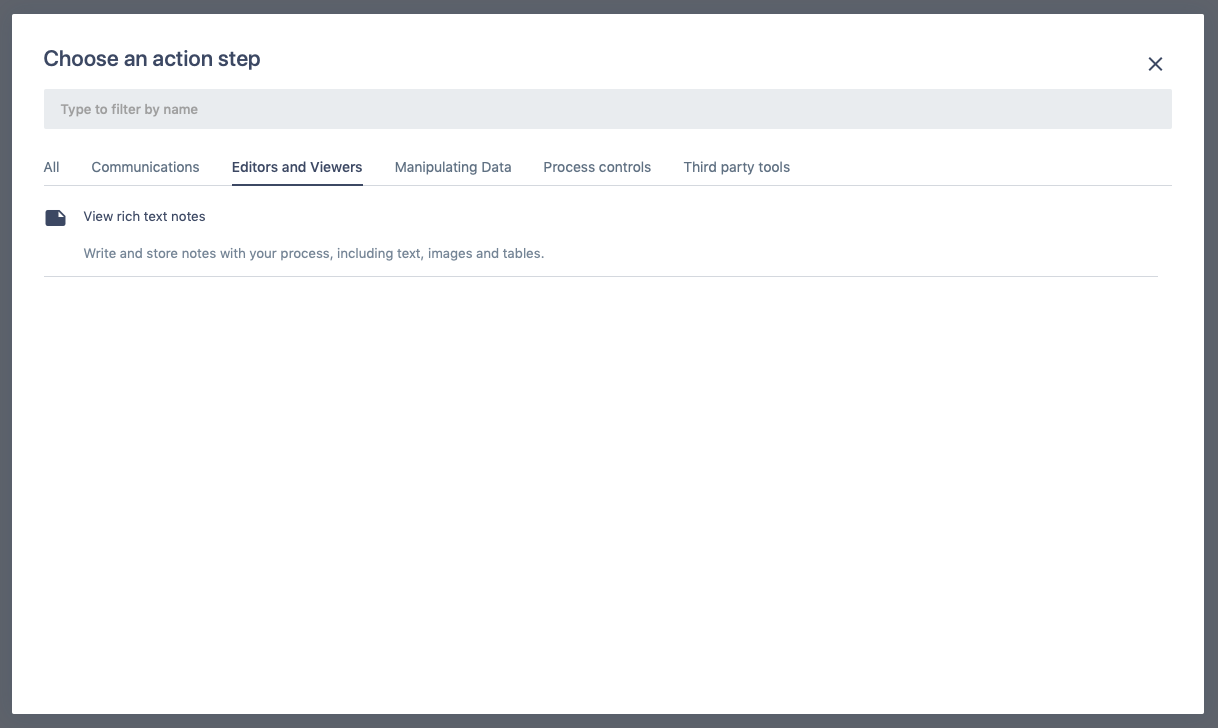
3. Choose the step type View rich text notes. Search for text notes in the filter field or use Editors and Viewers list as a shortcut.
4. The step will appear in the group and on the screen for further configuration.
5. Enter some text to the editor.
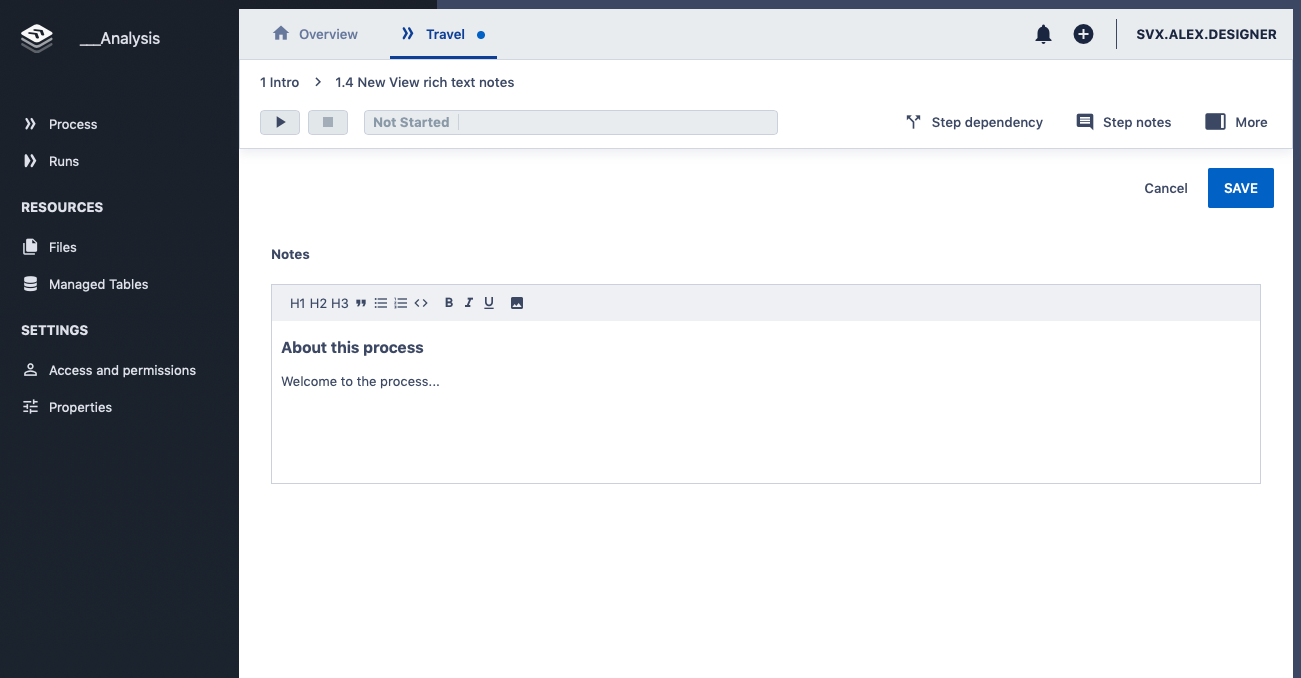
6. Click Save.
Comments
0 comments
Please sign in to leave a comment.