
The Run another process is an action step that will create a process run for the selected process. You are able to configure the conditions to determine whether the step was executed successfully.
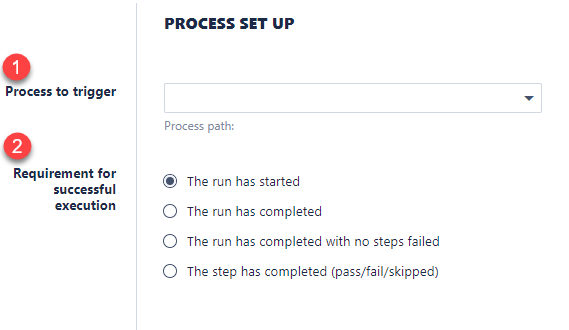
1) A drop-down menu that will allow you to select any processes you have access to.
2) A list of options that specify the conditions that need to be satisfied for the Run Another Process step to be completed successfully.
a) The run has started - The Run Another Process step will be completed successfully the instant the run is created. It will disregard the status of the process, even if the first step fails
b) The run has completed - The Run Another Process step will be completed successfully as soon as all the steps in the triggered process has reached a dormant state. (See Step Dependency - Seven States of a Step)
c) The run has completed with no steps failed - The Run Another Process step will be completed successfully when all the steps in the triggered process have reached a dormant state unless a step in the triggered process has failed. If a step in the triggered process fails, the Run Another Process step will fail as well.
d) The step has completed - The Run Another Process step will be completed successfully once the selected step in the triggered process has reached a dormant state.
The Run Another Process step supports the ability to retrieve files from the triggered process. The retrieval can be done by linking the file holder properties from the triggered process to a file holder property in the current process.

a) Link to file holder property in the triggered process
b) Link to a file holder property in the current process
c) Remember to click Add before saving the step.
Note: This functionality is not available if you set your success criteria to "The run has started"
Example
Consider a scenario in which you have built two different processes, each producing a report. In this example, one is a detailed report and another is a summary report. Initially, these were emailed out separately, but there is now a requirement to send both reports at the same time.
This could be achieved by building a third process which runs the original two processes to produce the reports and then emails the results.
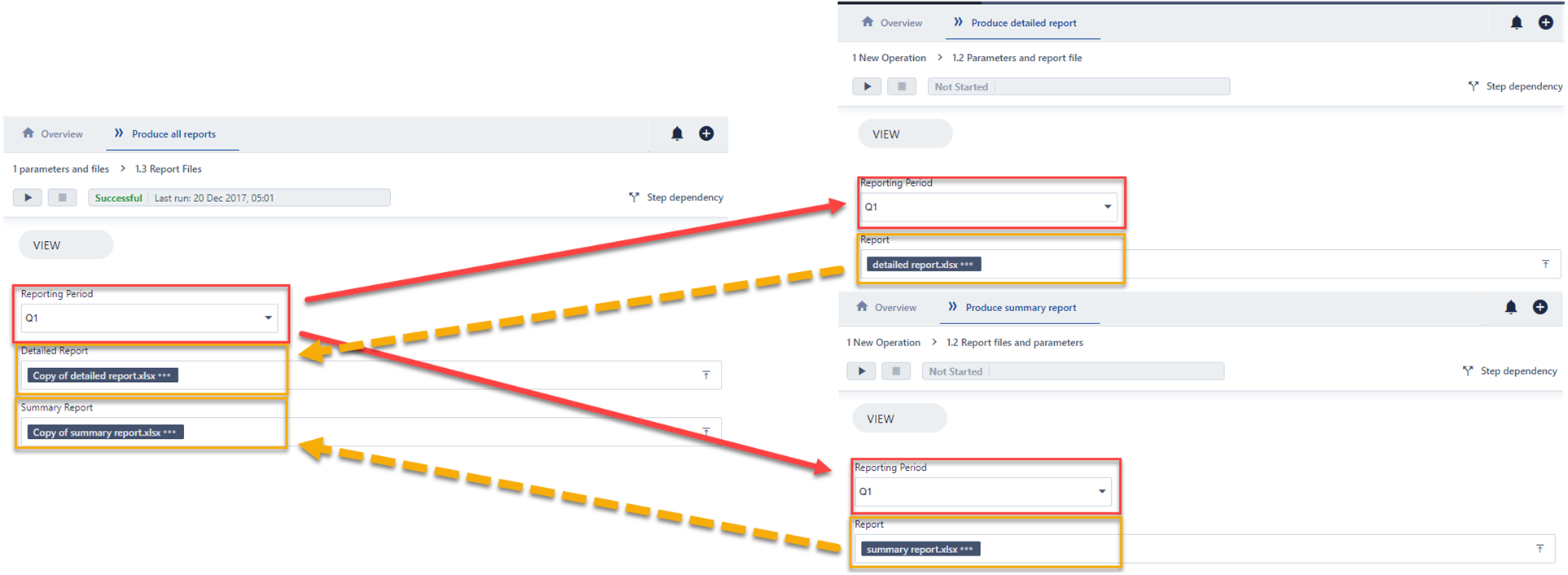
The top-level process Produce all reports uses the Run Another Process step to run each of the two existing reporting processes.
Steps
1. If required, set input parameters on the process to be run
Each of the reporting processes expects an input parameter for the reporting period, so we set this using the Copy Properties Between Steps step: to copy the value set on the top-level process to each reporting process before running it. Note that this needs to happen before the process is run by the Run Another Process step.
2. Add a Run Another Process step
This is added to your process like any other action step.
3. Configure the 3 sections within the step
Step 1 - the process to be run, chosen from the list of processes you have permission to run.
Step 2 - select what determines the successful execution of the process to be run. Note that the calling step will only complete once the process run has successfully executed (according to the criteria you have set).
Step 3 - select any files from the process run which need to be copied back to the calling process.
In our example we configure the step like this:
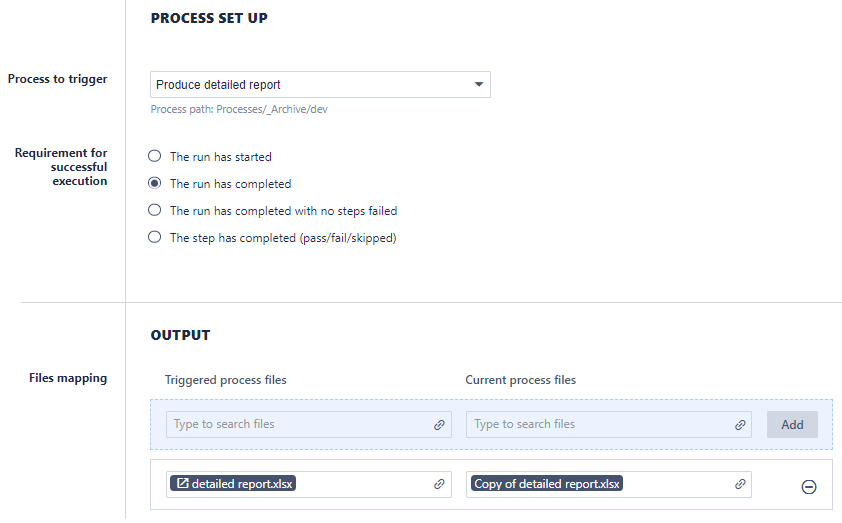
Note that the file produced by the Produce detailed report process is copied back to the calling process so that other actions can be performed on this file - in our case we wish to attach it to an email (together with the output of the second process).
In the example we have given you would then repeat the steps above, adding a second Run Another Process step to run the summary report process. Once these steps are configured the Produce all reports process looks like this:

Useful Tips and Resources
The ability to run another process from a step is a powerful feature that gives you great flexibility in your process design. Some tips:
Use Cases
The various scenarios to use the Run Another Process step are:
- you wish to reuse common functionality across several processes
- a process becomes very large and needs to be broken down into smaller parts to help make it more manageable
- you need to repeat the same set of actions several times within a process using different parameters each time
One Main Task Per Process
Each process should perform a single main task - e.g. produce an invoice or reconcile some files. If you find you have a process that performs several independent tasks then that process could be broken down into several smaller processes and if necessary then linked together by a master process which runs each individual process in turn. This will give you greater flexibility to deal with changes in your process flow going forward.
Process Flow
Think carefully about how you configure the setting which determines when a process run has completed successfully. For example, if the process being called has a confirmation step and you have configured successful execution as 'The run has completed' then your calling step will wait until the confirmation step in the process being run has been acknowledged.
Audit Trails
The audit trails for each process run are displayed under each (sub) process rather than at the main process level. However, if you hover your mouse over a process run it will indicate if the process was run from another process.
Comments
0 comments
Please sign in to leave a comment.